
At the bottom of the simulation module, there is an option to see a replay of the paths.

This option is available on the Paths and Simulation tabs.
The meaning of the different buttons:
 To the start of the path
 One step back in the path
 Play
 One step further in the path
 To the end of the path
 When running through the simulation, the current page will remain on screen.
(see Using Multiple Pages for more information)
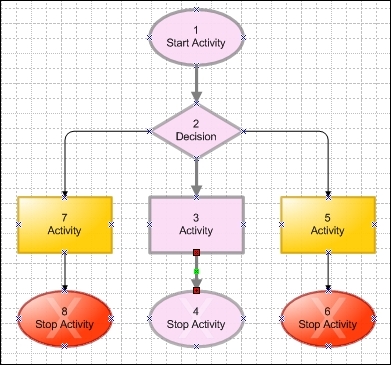
When you play a path, you can see in the Visio chart which path is being played and which step in the process you are at. It is possible to play one path or all paths. You can also set the speed at which you want to play the paths. Read more about this here: Speed.
It is possible to either run through an individual path or run through all paths in series.
Individual path:
1. Select a path. The path is highlighted in the Visio drawing.
2. Select either the Play Path option from the right-click menu of the path selection or click the play button. 
3. The path is now played out in both the simulation module and the Visio drawing. You can see this because the shapes are given extra highlighting when the simulation reaches them. The values of the attributes are also taken into consideration during the simulation.
Play all paths:
1. From the right-click menu on the Detect Paths and Simulate tabs you can access the Play All Paths command.
2. Each path will now be run through one after the other. The path that is currently being played is highlighted in the Visio drawing. The shapes that make up the path are highlighted individually as the simulation reaches them.
