
Before you can simulate a process, first you must Detect Paths. This means that all possible routs the process can take will be shown, including the values and the total values of the attributes you have entered.
To do this:
1. You click the button Detect Paths.
2. A new tab becomes available, named Paths: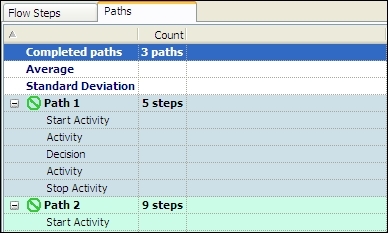
In this tab the following columns are shown containing:
First column: the paths that are found and which steps they contain
Count: the number of paths that were found and the number of steps each path contains
Attribute column(s): the average value of the different paths, the standard deviation, the total values for each path and the values for each step.
If you select a step of a path, the path will be highlighted in the Visio chart. The corresponding shape will be selected. This allows you to see which path and which shape you have selected.
See picture below
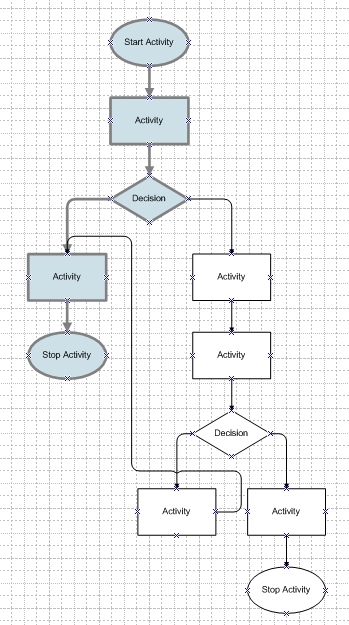
If you make changes on the Flow Steps tab, these will automatically be shown on the Paths tab.
If the simulation module has detected the different paths, you can begin simulation. Read more about this under Simulate.
At the bottom of the simulation module, you can also play a simulation of the paths. Read more about this under: Play Simulation.
Note: You can change the name of a path from the content menu of the selected path in the Paths tab. The modified path name is retained and will be used if exported.
However, the name change will be discarded if the paths tab is discarded (change in chart).
