
The second column on the Flow Steps tab is called Weight. Here you can indicate for each option of a decision how often this option occurs. You can do this by clicking in the column on the row of the relevant option and entering the amount.
Note: It is possible to navigate through the cells by using the TAB key or the different arrow keys.
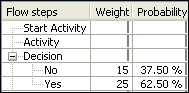
After specifying the amounts in the Weight column, the Percentage column is automatically filled with the percentage of how often the different options occur.
Changing the weight is done in the same way. If you have already done a simulation and change the weight, the simulation will be discarded. You can read more about this at Discard simulation.
It is not possible to enter a weight for the steps of a process. This is indicated by the  in those rows.
Example of a decision with 2 different options in the flow:
Note: You can only enter positive numbers in the Weight column.
It does not matter whether you use a dot or a comma to create a decimal number. It will be changed to the decimal character that is set in your windows version.
As both a comma and a dot can be used as a decimal separator, it is not possible to use either character twice in one number.
