
Overview
This article explains how to work effectively with others in the same database and avoid common issues.
1. Use your own login credentials
Each user must have a personal Mavim account.
-
You cannot log in from more than one device at the same time.
-
Account sharing is not allowed and violates licensing policies.
Your user account is tied to database access managed by your administrator in the Mavim Connect Center.
2. Opening a shared database
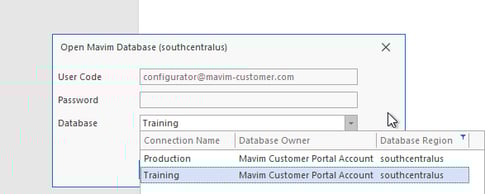
When you start Mavim, you’ll see a list of available databases.
-
If the database you need is missing, contact your administrator to add it.
-
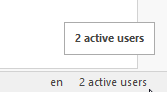
After opening a database, check the status bar to see how many users are currently connected.
-
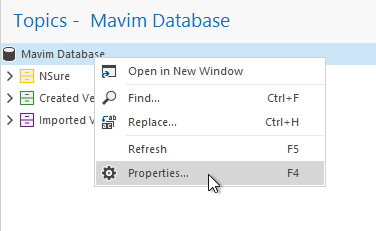
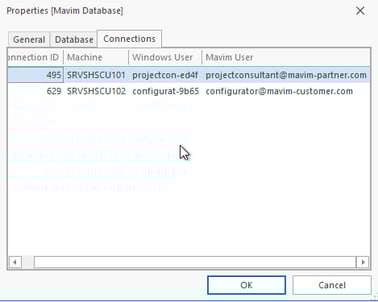
To see who’s online, open the Properties screen of the database and switch to the Connections tab.
3. Editing topics and charts
Mavim prevents conflicts when multiple users work on the same content.
-
If someone else is editing a topic, you can’t change its name or description, but you can still edit field values and relationships.
-
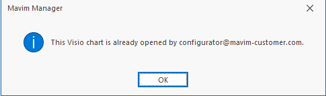
You can’t open a chart already opened by another user; this will trigger an error.
-
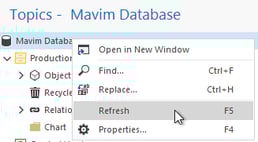
Changes made by others aren’t visible in real time. Press F5 to refresh your database and load the latest updates.
4. Agree on collaboration rules
Good teamwork in Mavim starts with clear agreements. Discuss and document these with your team:
-
Division of work: Decide who maintains which processes, topics, or relationship categories.
-
Conventions: Define how to use topic types, relationship types, fields, and naming standards.
-
Naming rules: Use descriptive names for matrix definitions, flowcharts, characteristics, and reports to avoid duplicates and make reuse easy.
-
Roles and responsibilities: Assign who manages permissions, creates versions, and publishes content to the Mavim Portal.
-
Descriptions: Add explanations to non-published objects (like matrix or field definitions) so others know how to use them.
5. Adding descriptions to database objects
To help others understand what a certain object, ie. a Matrix Definition or Report Definition, is intended to do, make sure to name it intentionally.
To be able to see all objects you need to be an Administrator and enable the Object view for yourself.
- Go to the Layout tab in the ribbon and enable "Objects"
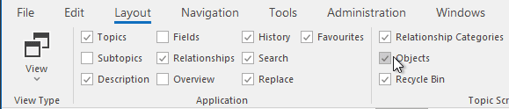
- This will enable the Objects section in your Tree:
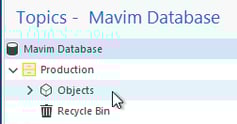
now you can check if all objects are clearly named and even:
- Select the object and use the Description screen to explain its purpose or usage.
These internal notes improve clarity for anyone modeling in the same database.
6. Managing shared files
Avoid linking to files on your local computer. Other users can’t access them, and doing so can cause security and stability issues.
Instead, use your organization’s shared storage:
-
Microsoft SharePoint or another Document Management System is recommended.
-
Your Mavim cloud environment includes a personal drive and a shared drive.
-
Use the personal drive only for temporary files or imports.
-
Store shared files, such as web themes, on the shared drive.
-
7. Best practices summary
To collaborate successfully in Mavim Manager:
-
Always use your own credentials.
-
Coordinate who edits what.
-
Refresh frequently to see others’ changes.
-
Follow agreed-upon conventions and naming standards.
-
Store files in shared, accessible locations.
Following these practices keeps your shared Mavim database consistent, reliable, and easy to maintain.
Watch the video:
