
Overview
This document describes the integration between Mavim and Azure DevOps. The Power Platform solution described in this article is built specifically to synchronize the Microsoft Business Process Catalog structure from Mavim into Azure DevOps.
You can obtain the Power Platform solution (.zip) by contacting your Mavim Partner or Account Manager.
The Azure DevOps project you are synchronizing with must be configured using the Azure DevOps template provided by Microsoft. This is covered in the Setup and Configuration section, together with the setup and installation of the Power Platform solution.
Instructions for using the Power App and Power Automate flows that synchronize processes from Mavim into Azure DevOps are described in Synchronization from Mavim to ADO.
Once processes are synchronized into work items in Azure DevOps, changes to those work items can also be synchronized back into Mavim. This scenario is described in Synchronization from ADO to Mavim.
Important: Both Mavim and Azure DevOps are highly configurable. This Power Platform solution should be viewed as a Mavim to ADO starter kit. If you configure different or additional fields in Mavim and Azure DevOps and want to synchronize those fields as well, you must adjust the Power Automate flows.
SETUP & CONFIGURATION
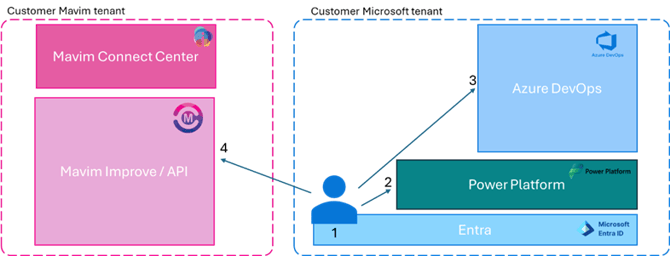
Step 1: Provide a user account with access to Mavim, Azure DevOps, and Power Automate
Make sure that the user account used in Power Automate to connect to Mavim:
- Has a valid Mavim API license
- Uses the Mavim Power Platform connector, which must not be disabled in the Power Platform admin center
- Is attached to the correct database in Mavim iMprove
This is described in more detail in the document Getting started with Mavim and the Power Platform.
Also make sure that the user account used in Power Automate to connect to Azure DevOps:
- Has a valid Azure DevOps license
- Has read and write access to the Azure DevOps project that will be used for synchronization
Account requirements
- An active user or service account in the customer domain
- Example:
user@[customer domain].com - The account must have a valid email address
- The account must have a Power Automate Premium license
- The account must have read/write access to the designated Azure DevOps project
- The account must have a Mavim iMprove license assigned through the Mavim Connect Center
- The account must be added to the correct Mavim database
Step 2: Import the Power Platform solution
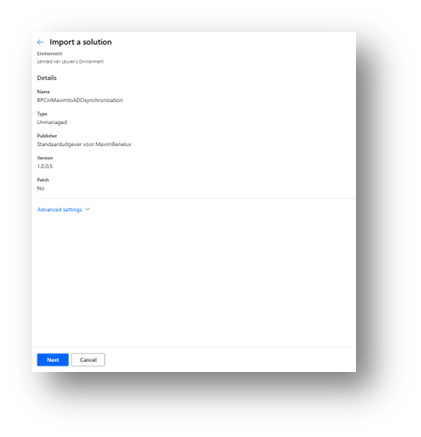
Import the Power Platform solution provided by Mavim by navigating to:
https://make.powerautomate.com/
Then complete the following steps:
- Select an environment, or create a new environment specifically for this solution
- Go to Solutions
- Select Import solution
- Select the solution ZIP file provided by Mavim
Required connections during import
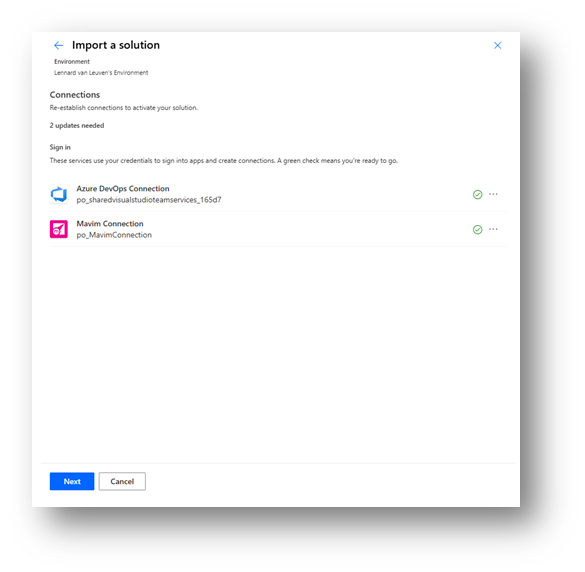
During the import, you will be asked to create two connections:
-
Azure DevOps Connection
This is the connection to Azure DevOps described in Step 1. -
Mavim Connection
This is the connection to Mavim described in Step 1.
Environment variables
After the connections are created, the solution will ask you to fill in the environment variables used by this solution.
-
BPC_StartTopicID
The Mavim DCV code of the topic where the Business Process Catalog structure starts. Locate this topic in Mavim and press F4 to look up the key.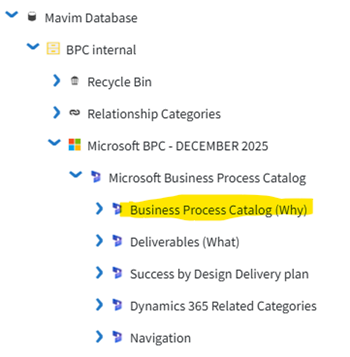
-
BPC_Deliverables_StartTopicID
The Mavim DCV code of the topic where the Deliverables structure starts. Locate this topic in Mavim and press F4 to look up the key.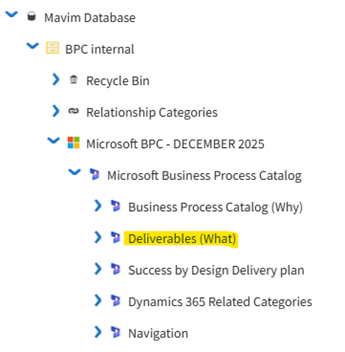
-
BPC_ApplicationFamily_StartTopicID
The Mavim DCV code of the topic in Mavim that contains all Application Family topics. Locate this topic in Mavim and press F4 to look up the key.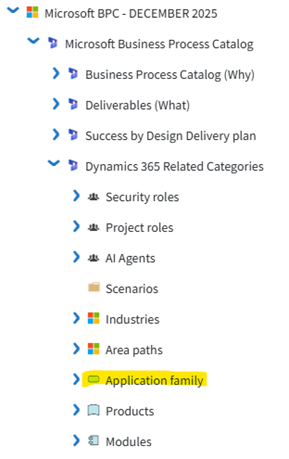
-
MavimDatabaseLanguage
The language setting for Mavim.
The default value isen. Only if you have enabled the Dutch data language in Mavim Manager can you switch this tonl. -
AzureDevOpsURL
The first part of the link to the Azure DevOps project. Example:https://dev.azure.com/MavimD365/Sync%20BPC%20in%20Mavim%20to%20ADO/ -
DevOps Environment
The second part of the link to the Azure DevOps project. -
DevOps Project
The third part of the link to the Azure DevOps project. -
MavimDatabaseID
The ID of your Mavim database. The easiest way to find the database ID is to open Mavim iMprove and select the correct database if you have access to multiple databases. You can then find the database ID in the URL. Example:https://improve.mavimcloud.com/1579c272-6c82-4985-b940-1b305bb8fe67/en/nav/(left:topic/d5235965c20011v0)
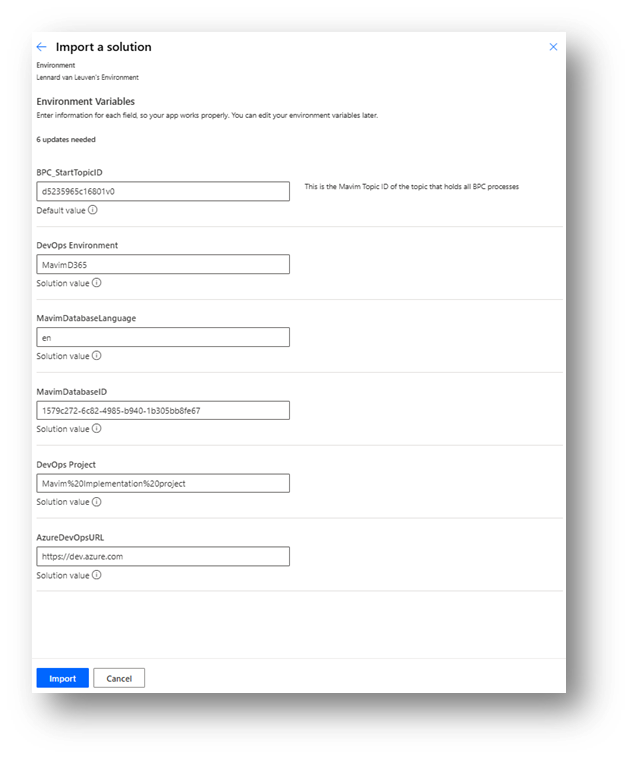
After you click Import, the Power Automate solution is imported and can be found in the list of solutions.
Step 3: Configure the Azure DevOps project
Microsoft has released an Azure DevOps template for the Business Process Catalog. This ADO template contains a large number of custom work item types and fields that align with the different concepts in the Business Process Catalog.
Microsoft also created a script that can deploy this ADO template in any Azure DevOps environment. It is important that this script is used to make the ADO template available. The Power Automate solution uses the exact field names in this template to synchronize content from Mavim into ADO.
More information about this ADO template and the deployment scripts can be found in the Microsoft Learn article:
Import the business process catalog into Azure DevOps - Dynamics 365 | Microsoft Learn
ADO configuration steps
- Deploy the ADO template provided by Microsoft
- Create a new project based on this template
Note: If you have already deployed the Power Automate solution, make sure you update the DevOps environment variables in the solution. - Manually create the three root work items based on the Tree work item type
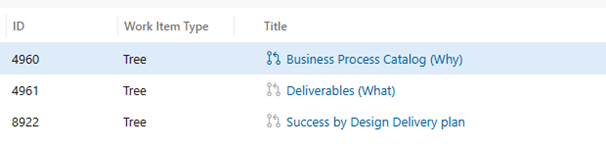
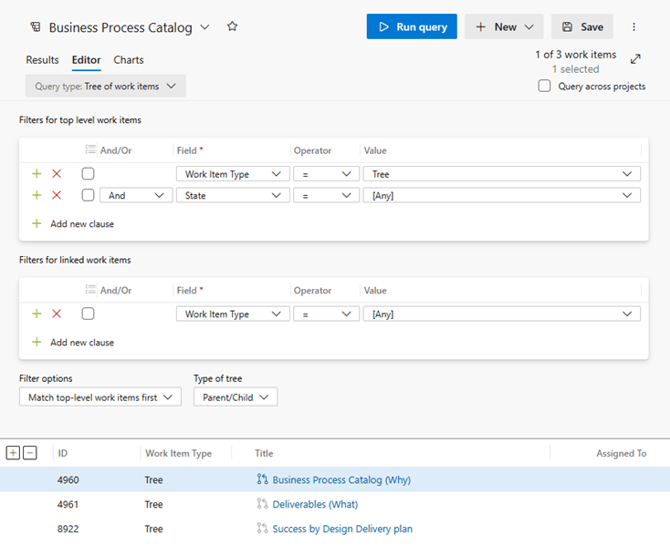
- Create a query with the following settings
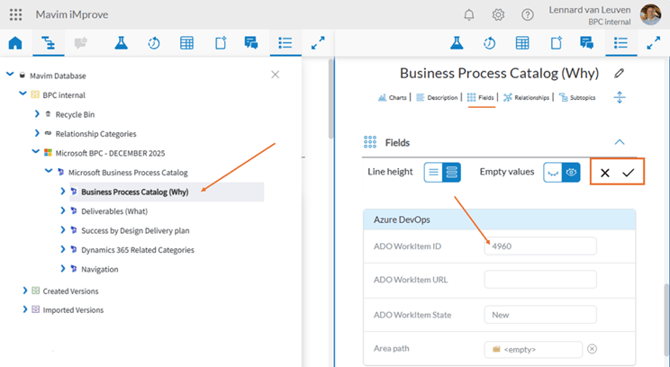
- For the three manually created Tree work items, copy the work item IDs and enter them in the corresponding topics in Mavim in the field ADO WorkItem ID
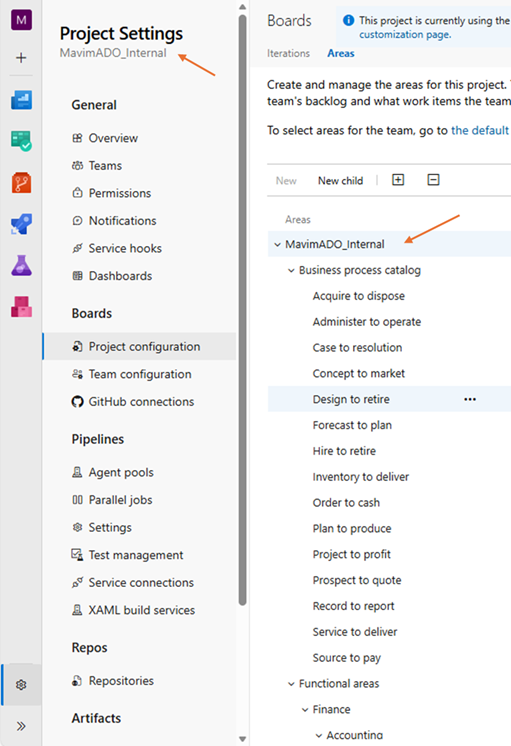
- Check the Area Paths
- The ADO template uses Area Paths to connect processes to deliverables. Make sure the list of Area Paths is deployed during the rollout of the ADO template.
- Make sure the list of Area Paths starts with the name of your project. This must match the value entered in the DevOps Project environment variable in the Power Automate solution.
This completes the configuration of Mavim and ADO.
Changes that can break the Power Automate solution
Please be aware that any of the following changes in the configuration of either Mavim or Azure DevOps can cause the Power Automate solution to stop working correctly:
- Changing the topic types used in Mavim
- Changing the work item types in Azure DevOps
- Changing the names of fields in Mavim or Azure DevOps
- Changing the dropdown values for list fields in Mavim or Azure DevOps
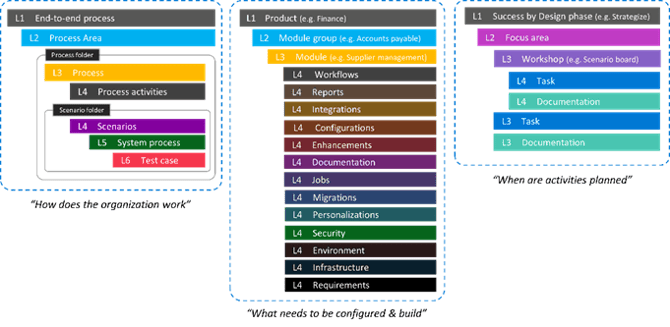
- Not following the predefined structure and levels in Mavim
Changes you can make without breaking the solution
The following changes can be made without breaking the Power Automate solution:
- Adding or updating topics in all topic types, as long as the correct topic types are used at the predefined levels
- Adding additional fieldsets and fields in Mavim
Note: The Power Automate solution only looks up specific fields. Any additional fields are ignored. If you add additional fields that you want to synchronize with Azure DevOps, you must ensure that corresponding fields exist in Azure DevOps and adjust the Power Automate flows so those additional fields are included in the synchronization.
Synchronizing Mavim to ADO using the app
The synchronization of Mavim into Azure DevOps is driven by the Mavim to ADO Synchronization App.
This Power App shows the live process structure in Mavim. It allows you to select either:
- An entire end-to-end process
- One specific process to synchronize into Azure DevOps
After selecting a topic in the process structure, you can specify whether:
- Only that topic should be synchronized
- That topic and all subtopics should be synchronized
The Business Process Catalog also contains scenarios and configuration deliverables. You can choose whether these related scenarios and configurations should also be synchronized into ADO work items.
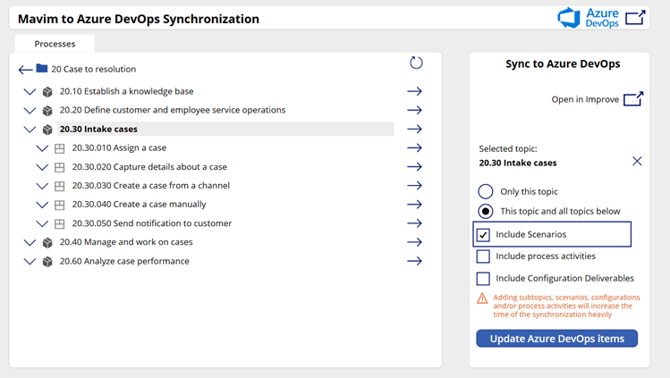
When you select Update Azure DevOps items, a Power Automate flow starts and looks up the topics and subtopics you selected in the process structure. For each selected topic, it starts a second Power Automate flow that synchronizes that topic into a work item in Azure DevOps.
- The first time a topic is synchronized, a new work item is created
- The ID of that new work item is stored in the corresponding Mavim topic
- The next time the same topic is synchronized, the flow recognizes the existing work item ID and updates the existing work item
Depending on the process structure selected and the related topics included, the result in Azure DevOps will reflect the synchronized structure.
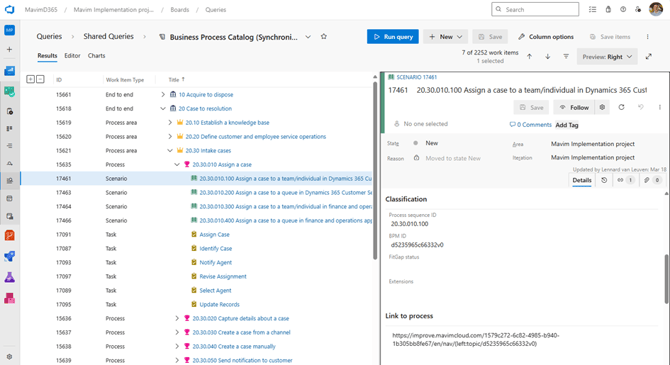
Synchronize Mavim to ADO by triggering a Power Automate flow
The process of synchronizing Mavim to Azure DevOps can also be performed by triggering a Power Automate flow directly.
In the imported Power Platform solution, you will find the Power Automate flow Start the ADO synchronization manually. This flow works in a similar way to the Power App, but it can also be scheduled, for example, to run as a daily synchronization.
When starting this Power Automate flow, you must provide four input values:
-
MavimStartTopicDCV
Similar to the Power App, this flow must know where to start in the Mavim process structure. You need to look up the Mavim key (DCV code) of the topic where the synchronization should start by using Mavim iMprove or Mavim Manager.
If you want to synchronize the entire Business Process Catalog into Azure DevOps, select the topic just above the 15 end-to-end processes.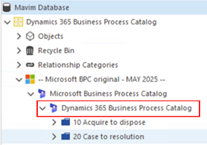
-
IncludeScenarios
Indicates whether related scenarios should also be synchronized into Azure DevOps. -
IncludeProcessActivities
Indicates whether process activities should also be synchronized into Azure DevOps. -
IncludeConfigurations
Indicates whether related configuration deliverables should also be synchronized into Azure DevOps.
Note: Depending on how many topics and related topics are selected, the flow can take several hours to complete.
Synchronization from ADO to Mavim
This Power Platform solution is primarily built for the Mavim to ADO synchronization scenario. Synchronizing information back from ADO into Mavim is also possible.
There are many possible scenarios for determining how, when, and what data should be synchronized back into Mavim. In this Power Platform solution, one Power Automate flow is included as an example of how information from ADO can be synchronized back into Mavim.
The Power Automate flow Update Mavim for DevOps D365 work item change is triggered automatically whenever a work item in the connected ADO project is updated.
This flow:
- Checks whether the work item was created by the Mavim to ADO synchronization
- Verifies this by checking whether the custom BPM ID field contains a Mavim DCV code
- Finds the corresponding Mavim topic
- Updates the work item state in the field ADO WorkItem State in Mavim
Important: Because this flow is triggered automatically for any work item change, it can generate a high volume of automation traffic. If you do not want to synchronize the work item state back into Mavim, you can turn off this Power Automate flow.
