
It is possible to couple a network location with a topic. In each description screen that contains a hyperlink to a topic that is coupled with a network location, the user can directly open the network location by clicking the hyperlink (see Hyperlinks).
To couple a Network Location:
- In the Topic screen select the topic you want to couple a file to.
- Select the Edit tab followed by the Couple Topic with drop down button or right-click and select Couple Topic with.
- Select Network Location.
The following window appears: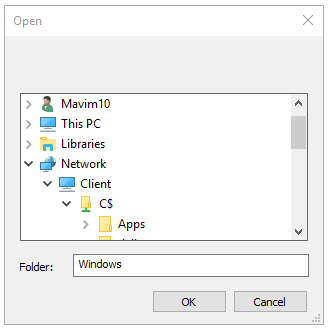
- Specify the network location and click OK.
Note:
-
In the Relationships screen of the topic with which the file is coupled , the link is shown as a relationship in the With What relationship category.
By double-clicking the relationship, the network location will be opened.
Network locations are distinguished by the addition file:// in the Name column and the value External Files in the From column.
- For coupled Network Locations, you can Edit Paths.
