
Many settings in every cell in a table can be adjusted: size, horizontal and vertical alignment, borders and shading. To access these settings:
- Place the cursor in a cell or select several cells.
- Choose Table Properties from the context menu.
- The Table Properties window appears.
- Click the Cell tab.
- The following window with a number of frames appears:
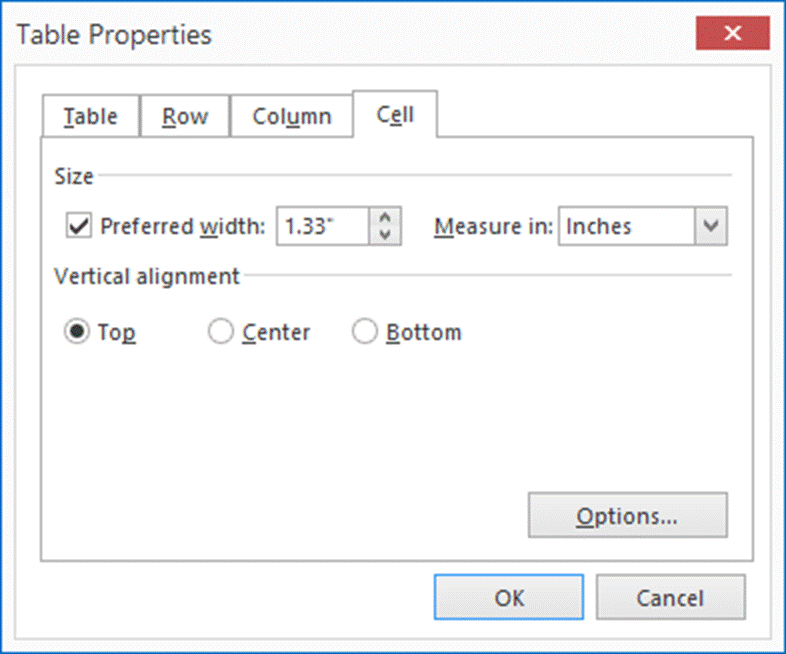
Size:
- Preferred Width; here you can set the width of the selected cell(s) (in inches or as a percentage, see Options Description Screen).
Vertical Alignment:
- Top; text is aligned along the top border of the cell.
- Centre; text is aligned in the centre of the cell.
- Bottom; text is aligned along the bottom border of the cell.
Text Direction
The direction of the text in each cell can be configured to run horizontally or vertically. This is done as follows:
- Select the cell for which you want to change the text direction.
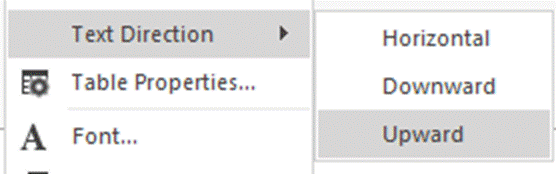
- Open the context menu and select Text Direction.
- Now you can select which direction the text should take:
- Horizontal (Default)
- Downward - First letter of the text is at the top of the cell.
- Upward - First letter of the text is at the bottom of the cell.
The text will now be oriented in the cell based on the option you have chosen.
