
In the Description screen, you can make lists using bullets and/or numbering. You can start a list and change its settings as follows:
- Place the cursor in the Description screen.
- Optional: select text (if you want the settings to apply only a section of the text).
- Select Numbering in the Format menu or in the context menu.
Note: If you want to use the default bullets or numbering, you can access them directly on the toolbar (see Description Screen Toolbars). - The Bullets and Numbering window with four separate frames appears:
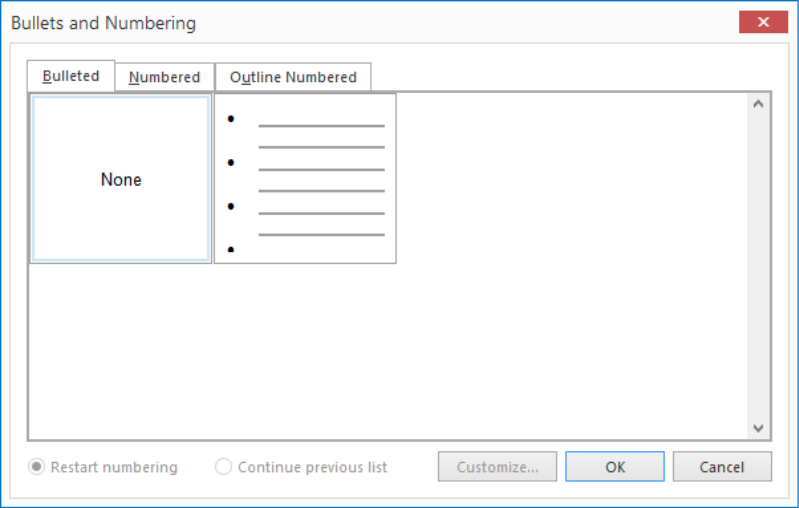
Bulleted Tab:
Select the type of list of your choice:
None; turns off bullets or numbering.
; turns on bullets.
Once you select the bullets, the Customize button will become available and you will be able to change the style:
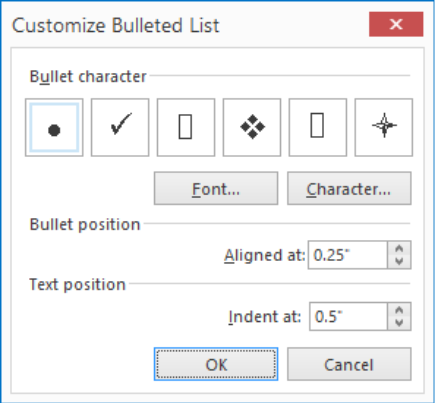
Bullet Character: Select the desired character here. For Font and Character, you can make adjustments to the bullet character.
Numbered Tab:
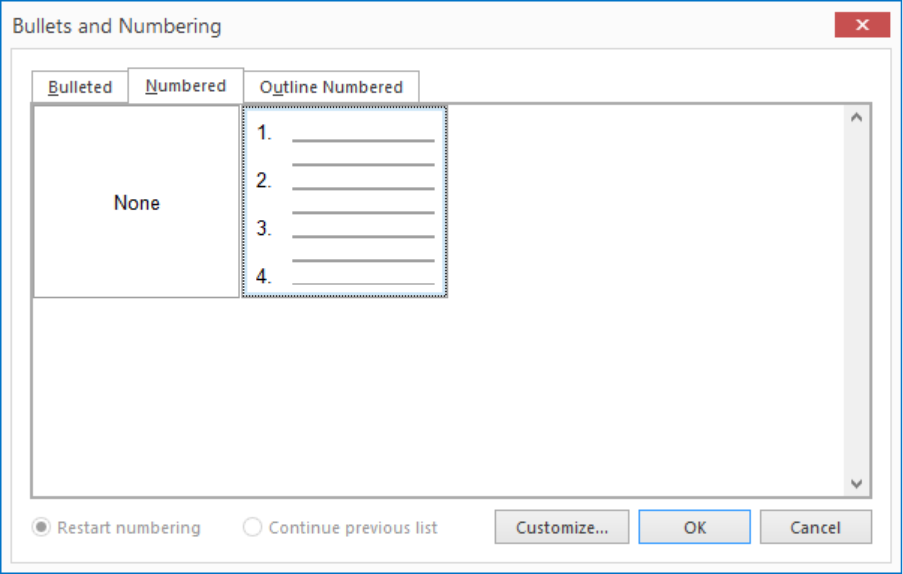
As with the bulleted list, once you select the list, the Customize button will become available:
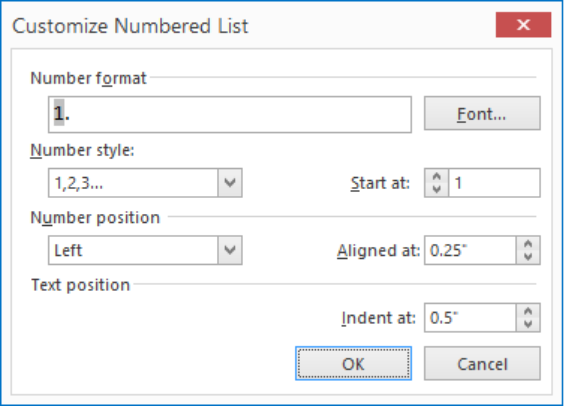
Here you can adjust the following:
Number format: The font can be adjusted here.
Number Style: Here you can define how your numbered list will be built and with which number it will start.
Number Position: The positioning of your numbered list and to which position it will be aligned.
Text Position: Where the text will start based on an indentation.
Outline Numbered Tab:
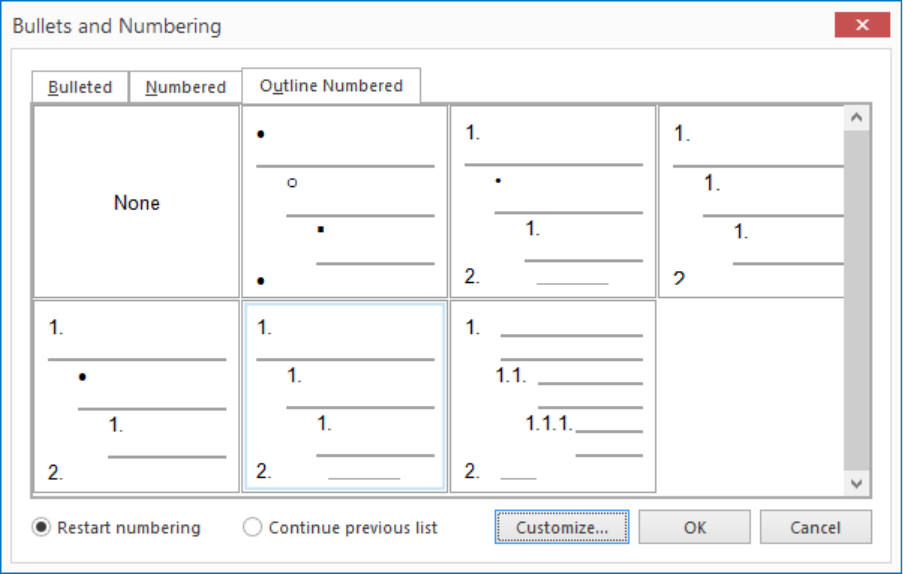
An Outline Numbered list can have multiple levels, building a hierarchy in your list. This tab lets you configure how you Outline Numbered list will look.
Available under the Customize button:
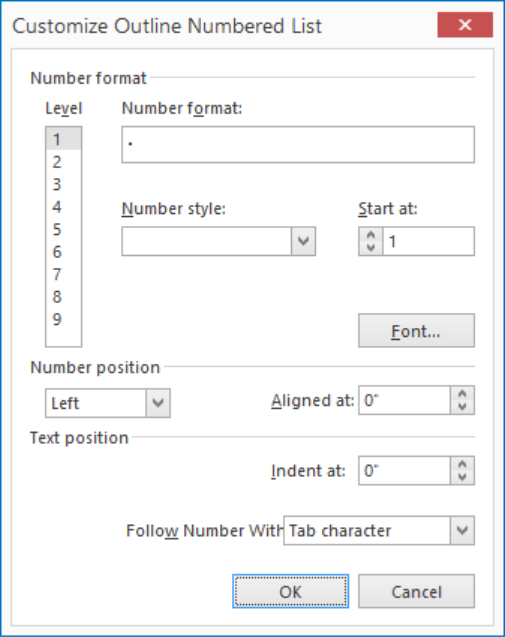
you can select the Level and make adjustments to:
- Number Format
- Number Style
- Level
- Start at
- Font
- Number Position (including alignment)
- Indent at
- Follow Number With:
- Tab
- Space
- Nothing
Note: For the Numbered and Outline Numbered lists you have the option to Restart Numbering or Continue Previous List. This option allows you to put normal text or an image in between list items and continue the list afterwards without having to restart numbering.
