
Mavim Manager offers two functions in regards to searching for content:
- Find
- Find and Replace
With the Find function you can search for text in the active Description screen.
Find:
To start this function:
- Place the cursor in the Description screen.
- Select Find on the Edit tab.
The following window appears: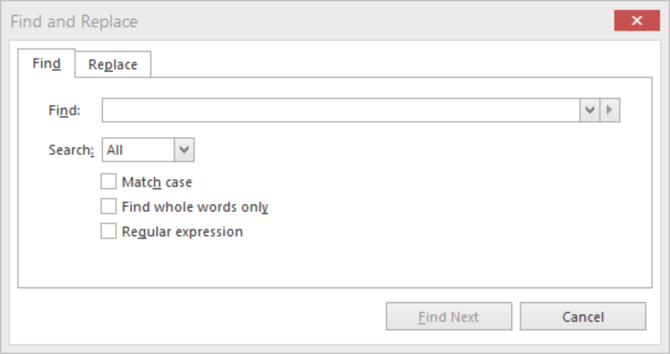
- Enter the text you are looking for in the Find field.
- You can make the search more specific by using the following options:
- Match Case = the search is case sensitive.
- Find whole words only = the search word has to be complete and independent (you cannot search for part of a word).
- Regular Expression = It is possible to enter a regular expression to search on.
- Click Find Next to start the search.
- When the searched word has been found, it will be highlighted in the text.
Note: You can open the Find function directly with the keyboard shortcut CTRL+F
Replace:
To start this function:
- Place the cursor in the Description screen.
- Select Replace on the Edit tab.
The following window appears: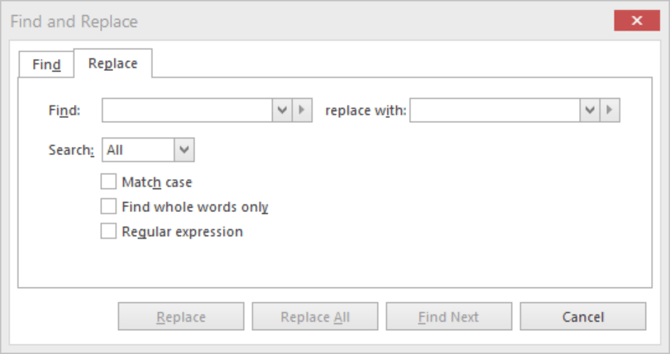
- Enter all of the search criteria as explained for the Find function.
- Enter the replacement text in the Replace with field.
- Click Find Next to start the search.
- When the search text has been found, it will be highlighted in the text. You have the following options:
- Replace = replace the found text.
- Replace All = replace every text that matches the search text in that Description screen.
- Find Next = do not replace the text found, but search for the next matching text.
Note:
-
You can open the Replace function directly with the keyboard shortcut CTRL+H.
-
You must first find the text before it can be replaced.
