
The font in the Description screen can be set in many ways, as in most word processors:
- Place the cursor in the Description screen.
- Optional: select text (if you only want to change the font for that text).
- Select Font in the context menu.
- Font*: select font.
- Font Style*: select style.
- Size*: select font size.
- Font Color*: select font color (see Set Colors).
- Underline Style*: select type of underlining.
- Underline Color: you can select the color of the underlining if you have chosen an underline style.
- Effects: you can select one of the following settings:
- Strikethrough: a line through the text (strikethrough).
- Double Strikethrough: a double line through the text (
 )
- Superscript: smaller, elevated text (e.g. exponents such as square: x2).
- Subscript: smaller, lowered text (e.g. in H2O).
- Small Caps: Capital letters with less spacing.
- All Caps: normal capital letters (all caps).
- Hidden: the text is no longer visible. Press(muahahaha) ¶ in the Text toolbar to show formatting and all hidden text (see also ¶ Show/Hide).
- Underline words only: Underline will be used but only the words will be underlined. The space between words will not.
Note:
Some of the font settings can be adjusted on the toolbar (see Description Screen Toolbars). Whenever an option is also available on the toolbar, it will be indicated with a * in the rest of this explanation.
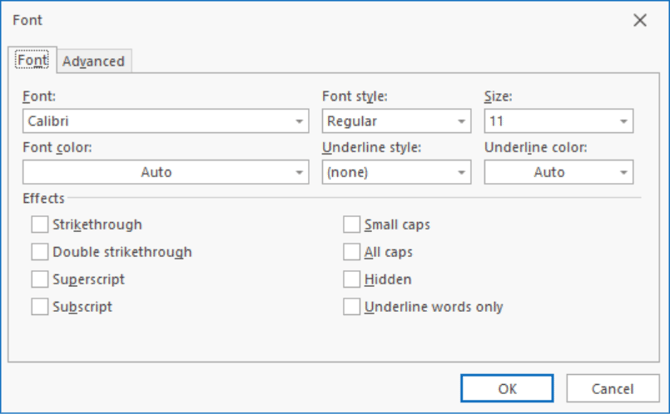
You can change the following settings on the Font tab:
The Advanced tab has more options:
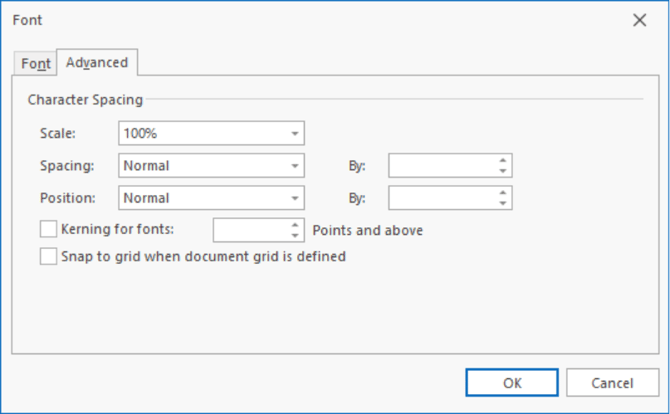
Scale: Scaling of the font based on a percentage of the chosen font size.
Spacing: Here you can select between Normal, Expanded and Condensed. As soon as you select either Expanded or Condensed, you can select by how many points in the field to the right.
Position: With the Position option you can select the position of the font on the line to either be Raised or Lowered. Once either of these options is selected you can configure by how many points using the field to the right.
Kerning: This is the process of adjusting the spacing between characters in a proportional font, usually to achieve a visually pleasing result. Again, you can use the field to the right for additional configuration.
Snap to grid when document grid is defined: This option is used when publishing to Microsoft Word. It will allow characters to snap to a grid if a grid is used in the resulting Word document.
