
You can change the format of a picture in the Description screen. You can change its size, its position, and you can crop it. To change the a format of a picture:
- Place the cursor on the picture.
- Right-click and select More Layout Options.
- The Layout window appears with several tabs:
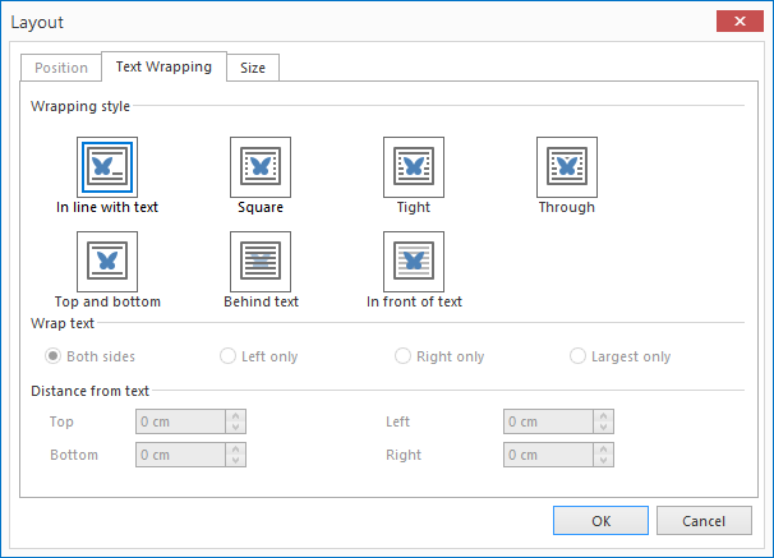
Text Wrapping:
Here you can adjust how text wraps around images using the 6 available buttons.
- In line with text - the default setting. The image is part of the line of text on which it is inserted.
- Square - the text flows around the image
- Tight - the margins between the image and text are smaller
- Through - combination of square and tight
- Top and bottom - text appears at the top and bottom of the image
- Behind text - the image appears behind the text, a bit like a background image
- In front of text - the image appears in front the text, it obscures the text that it is in front of.
You can also select if text wraps around:
- Both sides
- Left only
- Right only
- Largest only
In the lower section of this screen you can set the distance from text on all 4 sides.
Note: When publishing to HTML, the Behind Text option may not work as expected. The picture would be placed beside the text instead.
Size tab:
Here you can change the size of the picture by specifying measurements in Height and Width (in inches, see Options Description Screen):
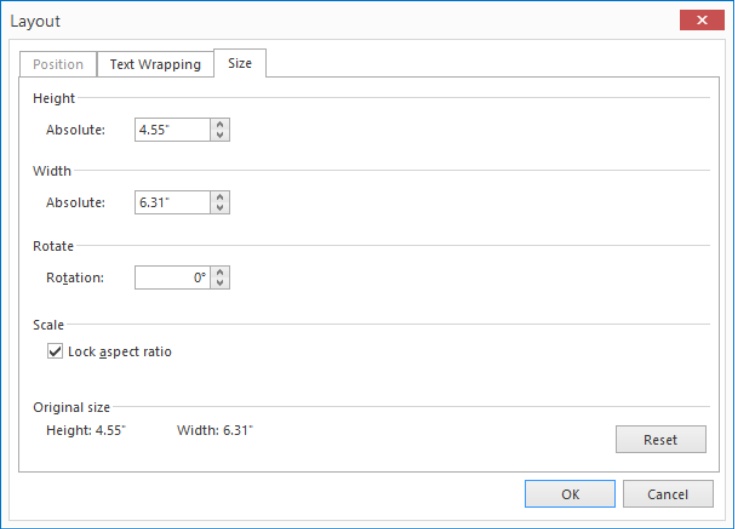
This will allow you to adjust the size of the image and it's rotation. For your convenience, the original size is mentioned in the lower section. If you choose to lock the aspect ratio, changing one of the sizes will automatically change the other size to maintain the aspect ratio.
Use the Rotation setting to change the rotation of the image.
