
In the Description screen you can also add symbols and special characters:
For Symbols:
- Place the cursor in the Description screen.
- Right-click and select Insert > Symbol.
- The Symbol window appears:
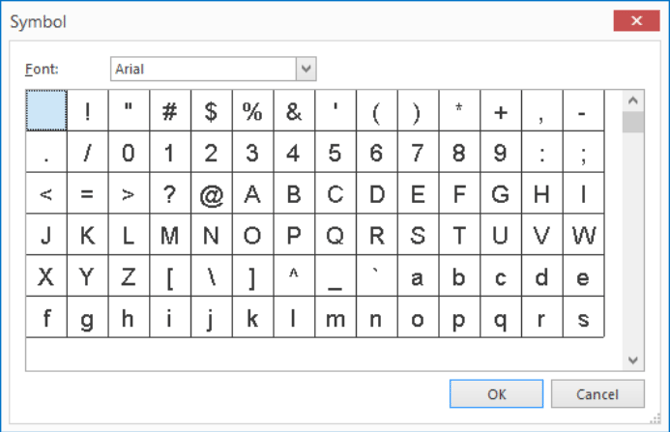
- From the Font dropdown box, select the font of the symbols that you want to use (the symbols will be shown in that font).
- Select the symbol you want to add and click OK.
For Special Characters:
- Page Break; the text after the page break will be placed on a new page.
- Non-breaking Space; a space between two words that keeps two words together at the end of a line.
To insert:
- Place the cursor in the Description screen at the position where you want to place the character.
- Right-click and select Insert.
- Choose one of these options, depending on what you want to do:
- Page Break
- Non-breaking Space
Note: These special characters are normally not shown. To view them, see: ¶ Show/Hide.
