
To print the contents of the Description screen correctly (see Print Description), you can adjust the margins and paper size, and if required, save these settings as default settings.
To access the settings:
- Place the cursor in the Description screen.
- Right-click and select File.
- Select Page Setup.
- The Page Setup window appears with the tabs Margins, Paper and Layout:
Margins tab:
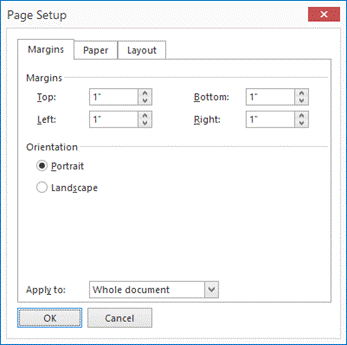
Here you can specify the left, right, top and bottom margins
(in inches, see Options Description Screen).
Paper tab:
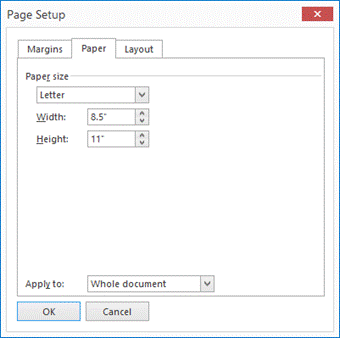
Here you can adjust the following settings:
- Paper Size; choose a standard size or an adjusted size.
- Width and Height; this is automatically set for a standard size, you can adjust it here (and the paper size will be automatically be set to Custom Size).
Layout Tab:
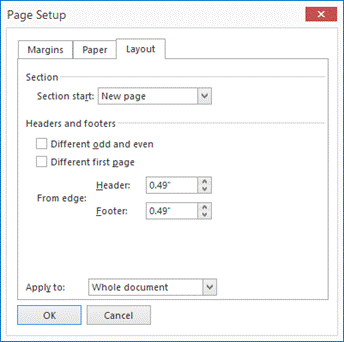
Section Start: Choose when a new section starts:
- Continuous
- New Page
- Even Page
- Odd Page
Headers and footers:
Headers and Footers are not supported in the Description screen. These options can be ignored.
