
At several locations in the application you have the option to select a color. In this example, we have opened the Options screen for the Description Screen:
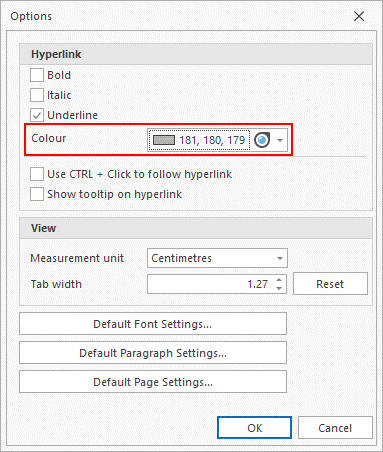
If you click the Drop-down menu, you will be able to select from a standard set of colors: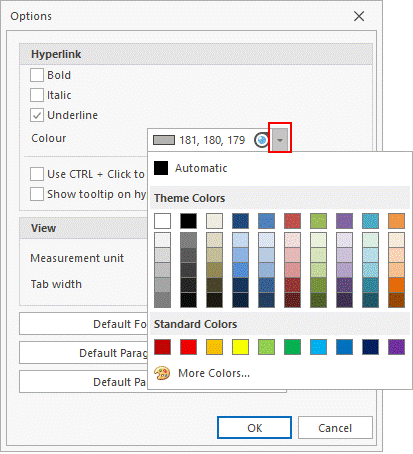
If the color you want is not shown, you can click More Colors to open the following screen:
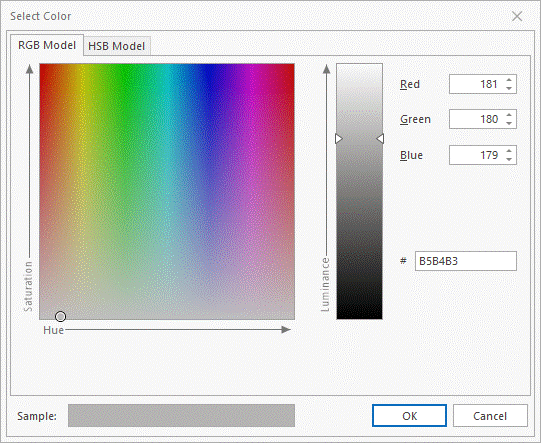
Enter RGB values:
RGB values (Red, Green, Blue) range from 0 to 255, where 0 means the color is at zero intensity and 255 means the color is at maximum intensity. You can enter any color combination you wish.
Use the color spectrum:
You can select a color by clicking on it in the color spectrum.
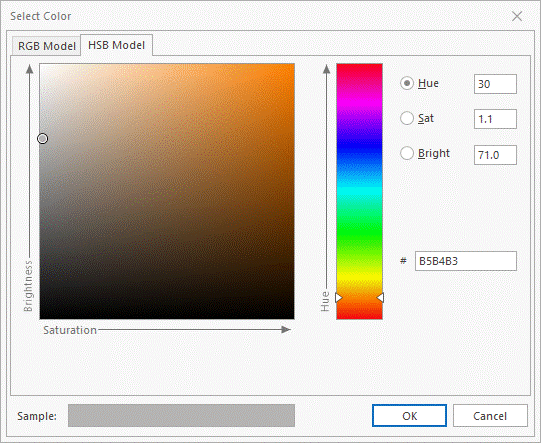
HSB value:
You can refer to the HLS value (hue, lightness, saturation) of the RGB value you have selected.
Color Picker:
You can also make use of a color picker to select a color that is currently shown on your screen:
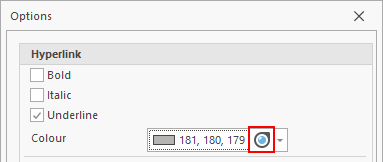
Clicking this button will provide you with the following tool:
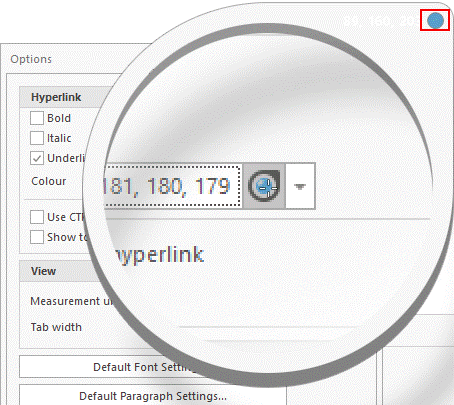
You can move this magnifying glass around the screen to select the exact color you want. The cross in the center of the circle denotes which part of the screen will be used to extract the color as well as showing you at the top right of the magnifying glass which color the cross is currently over. If you left click, the color will be selected. Right clicking cancels the magnifying glass.
