
Below is an explanation of the buttons found on the Table Toolbars. The Table Toolbars can be shown or hidden by opening the context menu of the Description Screen toolbars:
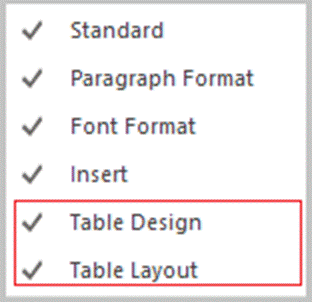
Each image shown below, shows one or more toolbars. The buttons and controls are numbered from left to right.
Special formatting:
- Table Design toolbar

-
Show special formatting for the Header Row
-
Show special formatting for the Total Row
-
Show special formatting for Banded Rows
-
Show special formatting for the First Column
-
Show special formatting for the Last Column
-
Show special formatting for Banded Columns

- Quick Styles - Quickly change the style of the table.
- Line Style - Change the appearance.
- Line Weight - Set the thickness of the lines in of the cell borders.
- Pen Color - Change the color of the cell borders
- Borders - Select which borders are used for each cell.
- Shading - Select which color the selected cells will be shaded with.
- Borders and Shading - Open the Borders and Shading properties window.
Table Layout Toolbar

- Select - Allows you to select either Cell, Column, Row or Table.
- Gridlines - Allows you to turn gridlines on or off (only visible if no borders have been set for the cell).
- Properties - Opens the properties screen for the selected table.
- Delete - Allows you to delete either Cells, Columns, Rows or the Table.
- Insert Above - Inserts a row above the currently selected cell or row.
- Insert Below - Inserts a row below the currently selected cell or row.
- Insert Left - Inserts a column to the left of the currently selected column.
- Insert Right - Inserts a column to the left of the currently selected column.
- Insert Cells - Allows you to insert cells with the following options:
- Shift cells right
- Shift cells down
- Insert entire row
- Insert entire column

- Merge Cells - With multiple cells selected, you can merge them into a single cell.
- Split Cells - This comand allows you to split cells.
- Split Table - Using this function will split the currently selected row from the rest of the table.
AutoFit -
-
Contents - will make the table shrink or expand to fit the contents.
- Window - Makes the table fit the window.
- Fixed Column Width - Gives the columns a fixed width.

- Align Top Left - Aligns the text in the cell in the top left corner.
- Align Center Left - Aligns the text in the cell to the center left.
- Align Bottom Left - Aligns the text in the cell to the bottom left corner.
- Align Top Center - Aligns the text in the cell to the top center.
- Align Center - Aligns the text in the cell in the center of the cell.
- Align Bottom Center - Aligns the text in the cell to the bottom center.
- Align Top Right - Aligns the text in the cell to the top right.
- Align Center Right - Aligns the text in the cell to the center right.
- Align Bottom Right - Aligns the text in the cell to the bottom right.
- Cell Margins - Opens the Table Properties which allows you to adjust the margins.
