
Exporting an XML document is intended for allowing use of data from one Mavim database in other Mavim databases or other systems, independently of Version Management. To generate an XML document:
1. Choose the topic you want to export in the Topics screen.
2. From the Modelling tab select XML Document in the Export group.
3. The Export Options screen will appear, with the topic you wish to export and below that the tabs Filter, Languages and Transport Topic.
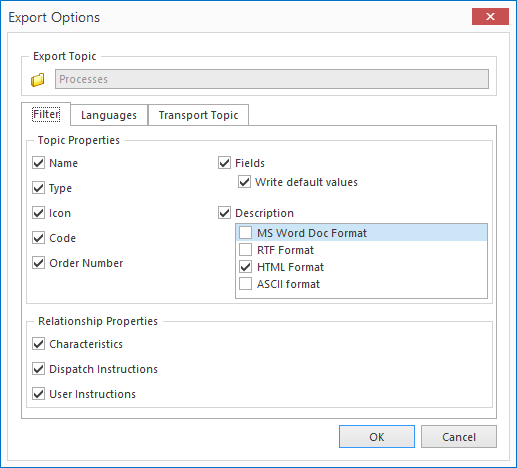
4. Adjust the following settings to your preferences:
Export topic
This shows the topic and its underlying hierarchy that you want to export. Not all topics can be exported.
Filter
All properties of topics and relationships are exported by default. Here you can indicate which properties you want to include in the export.
The description can be exported in four different formats. Export in Word or RTF format fully retains the layout and the images in a description. In ASCII format the images are not included. In HTML format the images are placed in a separate folder called <xmlfilename>_files.
Only relationships between exported topics are included in the export. For these relationships you can indicate whether you want to export the characteristics, dispatch and/or user instructions. Characteristics do not need to be explicitly added to the export. If they are defined for a relationship, they are automatically included in the export.
Dispatch instructions are only included if the topic to which the dispatch instruction refers is part of the export.
Languages
By default names and descriptions of topics and instructions are exported in the active data language. Upon export it is possible to include or select other languages than the active language, as long as those languages are activated.
Upon import of the XML document in Mavim, you can explicitly set which languages will be imported. This allows you to deviate from the settings you have selected here.
Transport topic
Indicate whether or not you want to use a transport topic map. If this is the case you can select whether you want to use an existing transport topic map or create a new one. It is also possible to not use a transport topic map (this is the Default setting). If using an existing transport topic map, the last used Filter and Languages settings will be applied. See also: XML transport topic
5. Click OK to confirm creating the XML document with the selected settings.
6. Give a name and a path for the XML document and click Save.
