
On both the File and URl tabs of the Edit Paths dialog you have the option to change one or more coupled files/locations simultaneously.
To do this:
- Select the File(s) or Location(s) you would like to change. When selecting multiple items you can use the CTRL or SHIFT keys in combination with the mouse.
- Click the Change Path button
- The following screen appears:
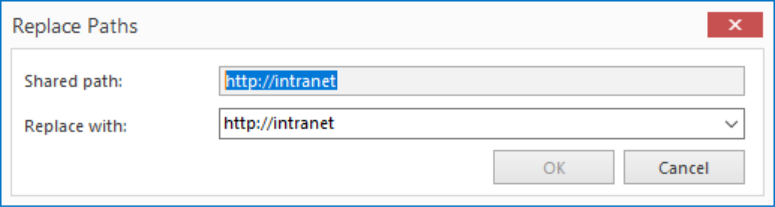
In the Shared path field you will see the part of the path that is the same for all paths shown. If all files/locations reside in the same folder then the entire path will be the Shared Path. If all files/locations are in different folders then it may be that no part of the path is considered a Shared Path.
In the Replace with field you can enter a new Shared Path for the selected files/locations. Parts of paths that follow the Shared Path remain the same when changing paths in this way. - Click Browse and navigate to the new location.
- Click OK.
