
Single-screen setup
If you are working with only one screen, the default layout when starting Visio from Mavim is:
-
Left 1/3: Mavim Manager
-
Right 2/3: Visio
Multi-screen setup
When multiple screens are connected, Mavim and Visio follow Windows’ primary display setting: 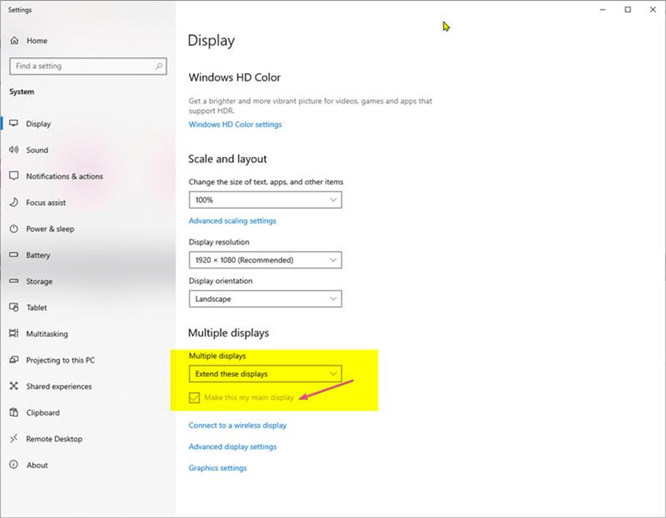
-
Mavim Manager always starts on the primary screen.
-
Visio automatically opens on the other screen.
For example:
-
If your laptop screen is set as the primary display, Mavim will open on the laptop screen and Visio will open on the external monitor.
-
If you set the external monitor as the primary display, Mavim will start there, and Visio will appear on the laptop screen.
Even if you move the programs manually, restarting Mavim resets them to this behavior.
How to open Mavim and Visio on the same screen
If you prefer both Mavim and Visio to open on the same screen:
-
In Mavim, go to Tools > Options.
-
Open the Miscellaneous tab.
-
Select the checkbox Display Manager and Visio on one screen.
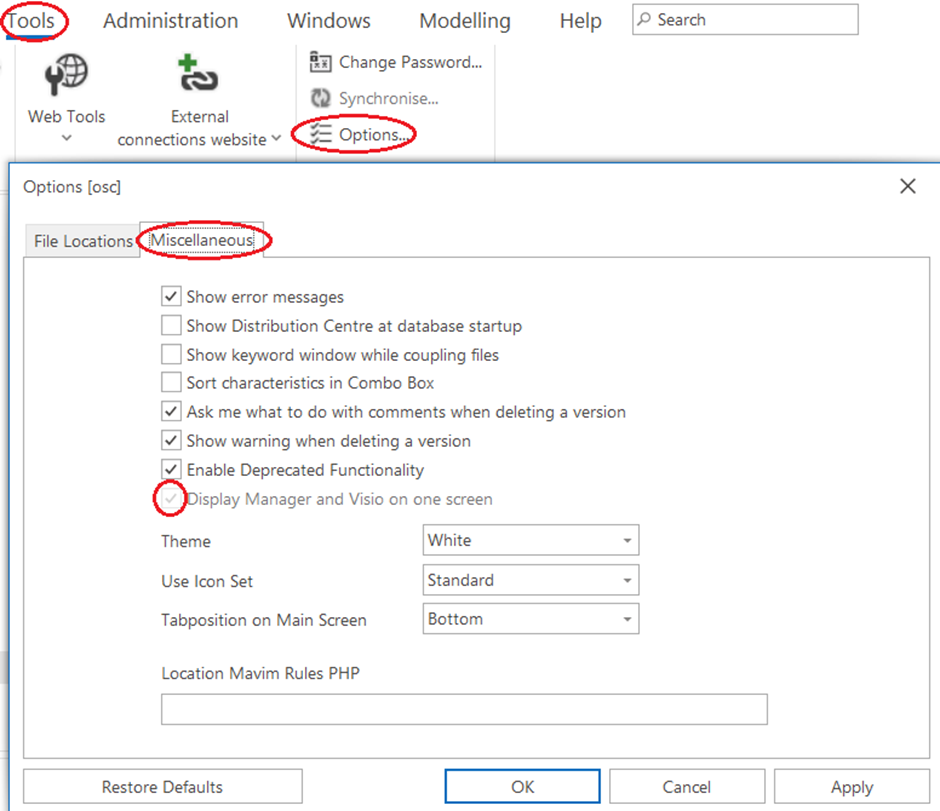
This setting overrides the default behavior and keeps both applications on the same display.
Summary
-
By default, Mavim starts on the primary display.
-
Visio opens on the other display.
-
You can change the primary display in Windows to adjust which screen is used.
-
To force both programs to open on the same screen, enable the Show Manager and Visio on one screen option in Mavim.
