
Target audience:
Users who need to link files or network locations to topics, especially those maintaining legacy setups.
Core purpose:
To explain how to enable and use deprecated file coupling features in Mavim, including Internal File, File, Network File, and Network Location.
Important notes
- These features are considered deprecated and will be removed from the software in a future version. These particular features are still visible in the software but other deprecated features are hidden behind an option (see below).
- Topic keys cannot be modified using Replace.
- Keywords can be added to help locate files in web publications.
Enable deprecated functionality
- Go to the Tools tab in the ribbon.
- Click Options.
- Switch to the Miscellaneous tab.
- Check Enable Deprecated Functionality.
Couple a file or network location with a topic
You can couple files in several ways. The below diagram details this:
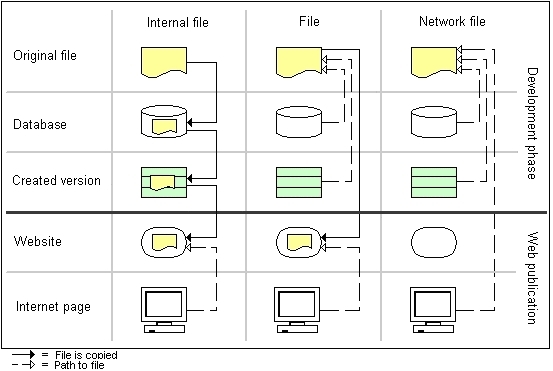
Steps to couple a file or location
Internal File
- Select a topic in the Topics screen.
- Go to the Edit tab or right-click and choose Couple Topic With > Internal File.
- Select the file and click Open.
- The file is now coupled and visible in the Relationships screen under With What.
File
- Select a topic.
- Go to Edit > Couple Topic With > File.
- Choose the file and click Open.
- The file appears in the Relationships screen.
Network File
- Select a topic.
- Go to Edit > Couple Topic With > Network File.
- Choose the file and click Open.
- The file is linked and shown in the Relationships screen.
Network Location
- Select a topic.
- Go to Edit > Couple Topic With > Network Location.
- Enter the network path and click OK.
- The location is linked and accessible via the Relationships screen.
Add keywords to coupled files
To enable keyword entry:
- Go to Tools > Options.
- Open the Miscellaneous tab.
- Enable Show keyword window while coupling files.
When coupling a file:
- After selecting the file, a keyword window appears.
- Enter keywords separated by commas.
- Click OK or Ignore to skip.
Accessing coupled files
- In the Description screen, hyperlinks to coupled topics allow direct file access.
- In the Relationships screen, double-click the With What relationship to open the file or location.
