
Introduction
The Microsoft Business Process Catalog (BPC) is a set of business processes that describes what the Dynamics 365 applications support. Microsoft maintains and updates the BPC several times a year.
Mavim provides each new BPC release as an importable
Mavim provides each new BPC release as an importable
.mtdx file so you can use the catalog directly in your Mavim environment.This article walks you through the steps to obtain the latest BPC version and import it into your Mavim database.
2 Important things first:
 This article assumes that it is your wish to import a new version or replace the content of the Microsoft Business Process Catalog with a newer version. If you have an earlier version, have made adaptations to it, have important metadata captured already and only want certain parts to be updated but keep your adaptations and data, you follow a different process.
If you are upgrading to version December 2025 or later and already have a version earlier than that in your database, take the following step before you import:
Remove Fieldset assignment from Topic Types
- Open Mavim Manager and go to the Administration tab.
- Select Administration Topic Types.
- For the topic types Process, Task, Module, Primary Topic, and Meaning, remove the Assigned Fieldsets.
You can select multiple fieldsets within a topic type and remove them at once.
This may take a few minutes.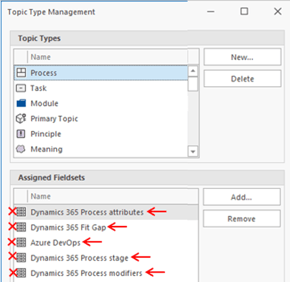
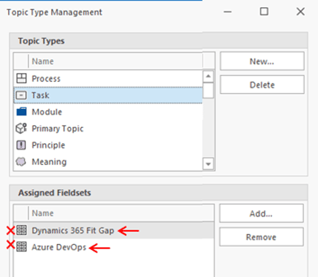
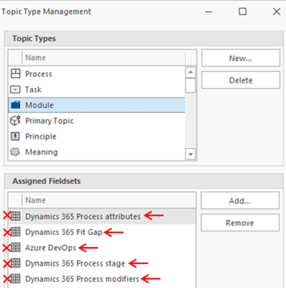
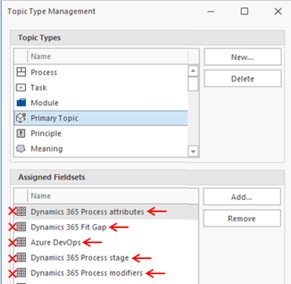
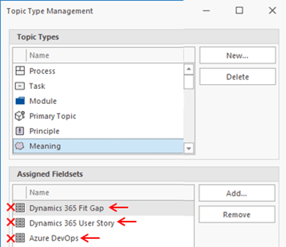
Then, let's get to importing:
Step 1: Get the Mavim import file
To receive the newest BPC
The file is roughly 600 MB. Once received, you can begin the import process.
.mtdx file, contact your Mavim partner or account manager.The file is roughly 600 MB. Once received, you can begin the import process.
Step 2: Import the BPC into your Mavim environment
- Download the
.mtdxfile shared with you. (Or download the latest version here) - Open Mavim Manager and select the database where you want to import the BPC.
- In the blue top header, open the action toolbar and select File Transfer → Upload.
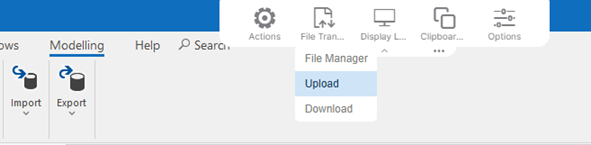
- Upload the
.mtdxfile and wait for the upload to complete. - Go to the Modeling tab, select Import → Version, and locate the uploaded file.
Uploaded files appear on the TempDisk drive under This PC. - Select the file and choose Open.
- Mavim will load the BPC into your purple cabinet under Imported Versions.
This may take a few minutes. - After import, you will see the BPC structure in the cabinet.
- To start working with the process model, copy it into your yellow cabinet.
Right‑click the purple Business Process Catalog Export … topic and select Copy.
(* It is important that you select the purple, highest topic to transfer all the elements to your yellow cabinet)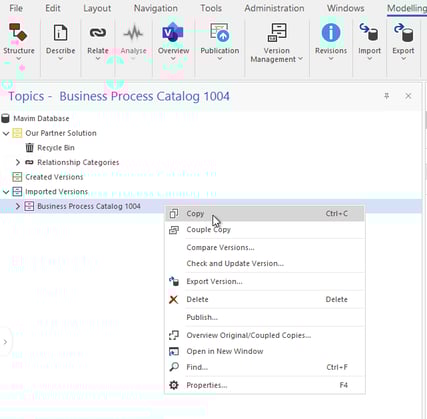
- Navigate to your yellow cabinet and paste it where you want it.
A good place is directly under the Relationship Categories topic.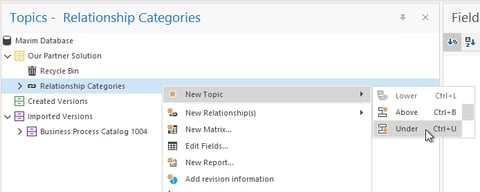
- Wait for the paste action to complete.
- You now have the latest BPC available in your environment.
You can create a new version definition and publish it to your Mavim Portal or customize it further by adding fieldsets or processes.
What is included in the latest BPC version
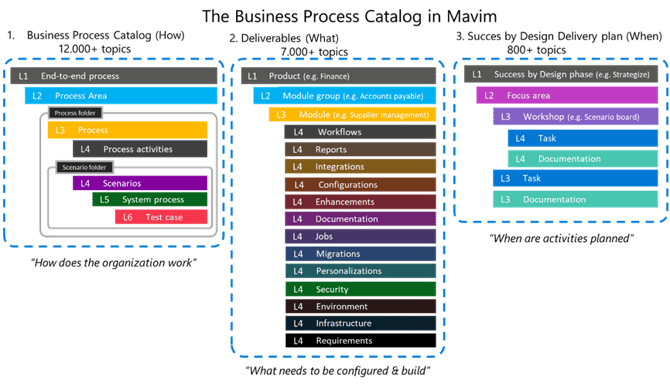
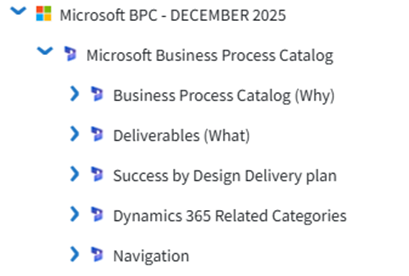
The December release includes three main process structures.
You will also see two additional structures:
You will also see two additional structures:
- Dynamics 365 related categories: Includes security roles, applications, products, and other category information.
- Navigation: Includes navigation pages such as the main Business Process Catalog start page.
Important notes
- Import and copy actions can take several minutes depending on environment size.
- The
.mtdxfile must be uploaded before you can perform the version import.
