
Target audience:
Users working with the Description screen who want to enhance text with special characters or symbols.
Core purpose:
To guide users through the process of inserting symbols into the Description screen using the built-in symbol tool.
Steps to insert a symbol
-
Open the Description screen
Make sure your cursor is placed where you want the symbol to appear. -
Right-click in the Description screen
A context menu will appear. -
Select
Insert > Symbol
This opens the Symbol window.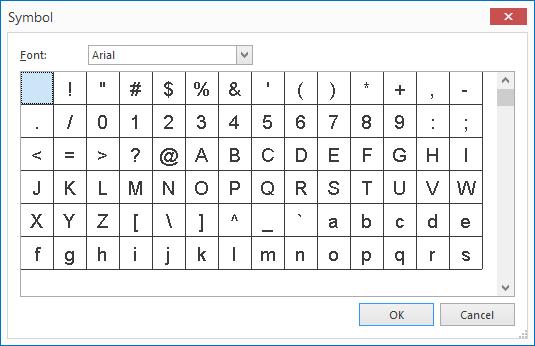
-
Choose a font
Use the Font dropdown to select the font that contains the symbols you want.
Tip: Fonts like "Wingdings" or "Symbol" offer a wide range of special characters. -
Select your symbol
Click on the symbol you want to insert. -
Click OK
The symbol will be added to your Description screen at the cursor location.
Important notes
- Some fonts may not display symbols correctly depending on your system or application settings.
- Symbols are treated as text characters, so they can be copied, resized, or styled like regular text.
- If you don’t see the symbol you need, try switching to a different font.
