
In order to create a connection between a Mavim topic and an Infor M3 screen, follow these steps:
1. Open the M3 Connection Manager using one of the following options:
· In the ribbon select Tools tab > Web section > External connections website > M3...
· In the ribbon select Edit tab > Couple Topic with > M3...
· Open the context menu of a Mavim topic and select Couple Topic with > M3...
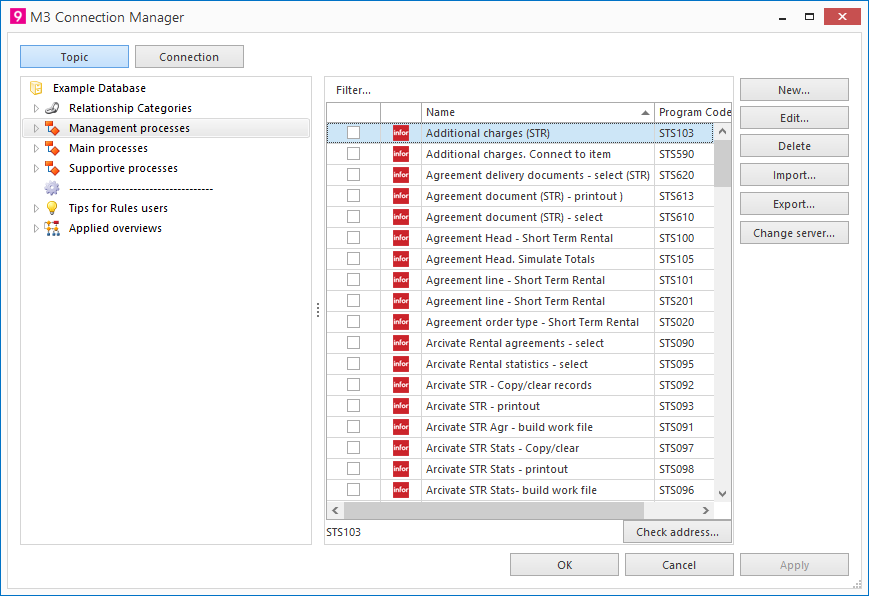
2. In the left hand section* select the Mavim topic you want to couple with an M3 screen.
3. In the right hand section* enable the M3 screen(s) you want to be coupled with the Mavim topic.
You can couple multiple M3 screens.
Note: If the screen at the right* is empty, you will first have to import an Infor M3-Excel sheet.
Read: Import M3 Excel sheet.
4. Click Apply to confirm the coupling.
By using the button Check address... you can check if the the coupling works properly.
Repeat step 3 and 4 if you want to couple a next Mavim topic.
5. Click on the button OK if all your couplings are created.
6. You can disconnect a coupling by deselecting a checkbox and confirming with either Apply or OK.
* If you click the Connection button the right and left hand section will switch location and functionality. Read more in: Connection Manager: M3.
