
To enable coupling Mavim topics with Infor M3 screens a specific Excel sheet must be imported into the M3 Connection manager.
This sheet:
· Contains Infor M3 screen names and codes;
· Is created by a Infor M3 consultant.
Importing a Infor M3 Excel sheet is done as follows:
1. Open the M3 Connection Manager using one of the following options:
· In the ribbon select Tools tab > Web section > External connections website > M3...
· In the ribbon select Edit tab > Couple Topic with > M3...
· Open the context menu of a Mavim topic and select Couple Topic with > M3...
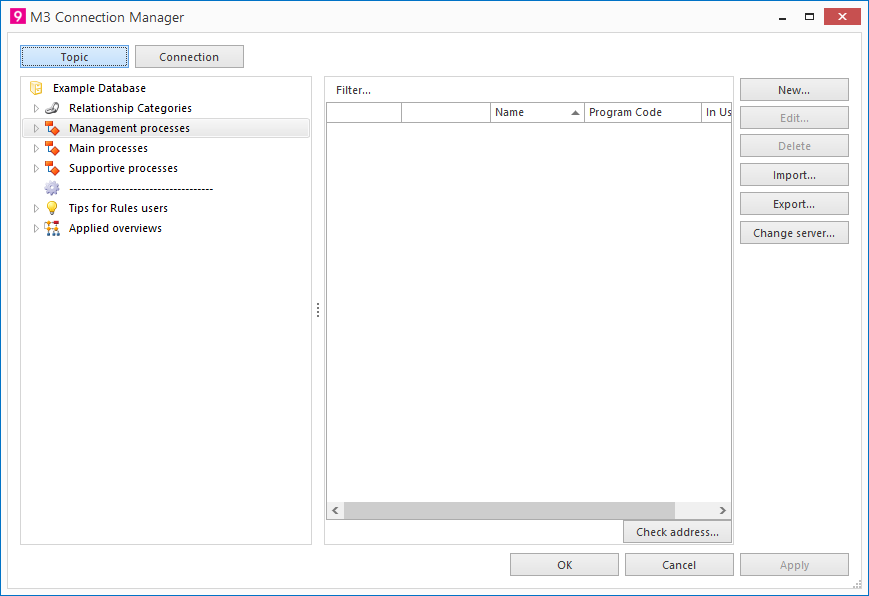
2. Click on the button Import...
3. The following screen will be shown: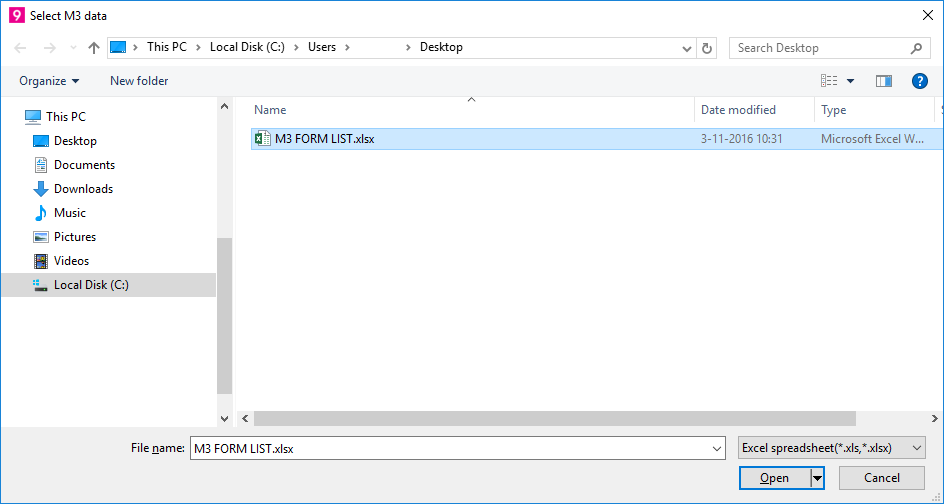
· Navigate to the location of the Excel sheet to import.
· Select the Excel sheet and click on the button Open.
The following screen will be shown: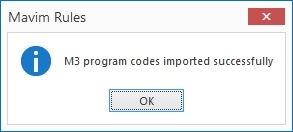
4. Click OK.
5. In the Connection Manager's right hand section* the imported data have been added.
* If you click the Connection button the right and left hand section will switch location and functionality.
