
To enable coupling Mavim topics with Dynamics screens, the URL to the Dynamics server must be entered into the Connection manager.
Entering this URL is done as follows:
1. Open the Dynamics Connection Manager using one of the following options:
· In the ribbon select Tools tab > Web section > External connections website > Dynamics...
· In the ribbon select Edit tab > Couple Topic with > Dynamics...
· Open the context menu of a Mavim topic and select Couple Topic with > Dynamics...
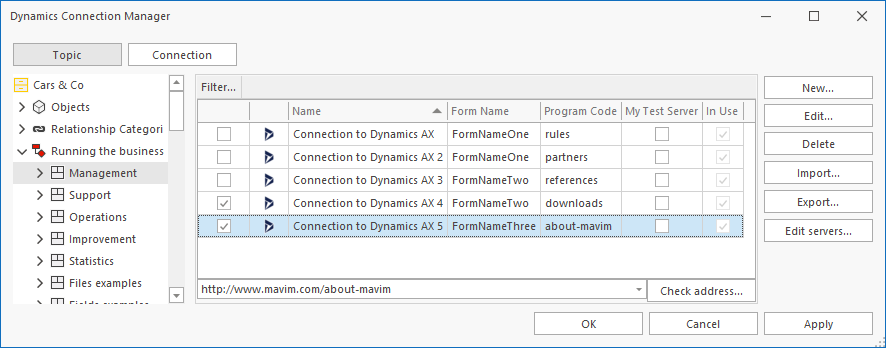
2. Click on the button Edit...
3. The following screen will be shown: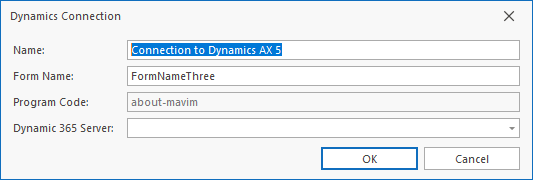
· Change the Name, Form Name and select the Dynamics 365 Server from the combo box.
· Click on the button OK.
4. The entered URL will be shown at the bottom of the imported Dynamics screens section in the Dynamics Connection Manager.
As soon as you have selected a Dynamics screen in the list, you can check the address using the Check address button.
* If you click the Connection button the right and left hand section will switch location and functionality.
