Who this guide is for (API consumers)
This guide applies only if your organization wants to call Mavim Cloud APIs from your own applications or integrations (for example, custom apps or automation).
When Mavim is installed in your tenant, Mavim’s own multi-tenant applications appear as enterprise applications. Those are Mavim-owned and are used by Mavim products.
To consume Mavim APIs with an application token (Client Credentials), you create a separate app registration in your own tenant. That app registration is:
- Owned and managed by you (the customer), not by Mavim
- Not required for normal use of Mavim products
- Use-case specific — only needed if you are an API consumer building or integrating something that calls Mavim APIs
Mavim does not impose this app registration on customers. Follow this guide only when you need programmatic API access.
To successfully integrate with Mavim APIs, you must:
- Create an app registration in Microsoft Entra ID.
- Configure an authentication credential (Client Secret, Certificate, or Federated Credential).
- Assign the api.access application permission.
- Grant administrator consent.
- Provide the Application (Client) ID to Mavim for allow-listing.
- Obtain an access token and consume the Mavim APIs.
Important: Mavim only accepts app-only tokens that contain the api.access role and originate from an allow-listed application.
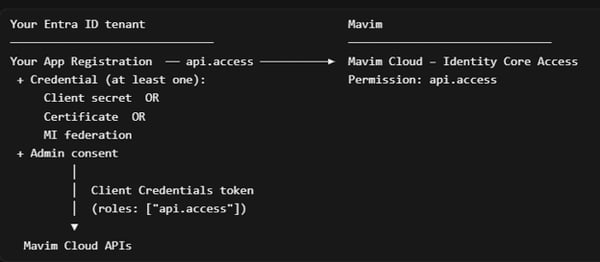
Purpose
This guide is intended for:
- Microsoft Entra ID Administrators
- Azure Administrators
- Integration Engineers
- Application Developers
Mavim API Information
| Property | Value |
|---|---|
| Enterprise Application | Mavim Cloud – Identity Core Access |
| Application (Client) ID | 51fb1b02-5c75-445f-9225-807e50623cd4 |
| Application ID URI | https://adapps.mavimcloud.com/mavim.cloud.identity.core |
| Token Scope | https://adapps.mavimcloud.com/mavim.cloud.identity.core/.default |
| Required Permission | api.access (Mavim API Access) |
| Permission Type | Application |
Prerequisites
Before you begin, ensure you have:
- Access to the Microsoft Entra Admin Center or Azure Portal.
- Permission to create app registrations (for example Application Developer, Application Administrator, or Global Administrator).
- Permission to grant admin consent for application permissions (typically Global Administrator, Privileged Role Administrator, or Cloud Application Administrator).
Configuration Process
The integration consists of the following steps:
- Create an App Registration.
- Configure an authentication credential.
- Add the Mavim API permission.
- Grant Admin Consent.
- Register the Application ID with Mavim.
- Request access tokens.
- Call the Mavim APIs.
Step 1 - Create an App Registration
Configuration
Configure the application as follows:
| Setting | Value |
|---|---|
| Name | ' your CompanyName' - Mavim API Client |
| Supported Account Types | Accounts in this organizational directory only (Single Tenant is recommended) |
| Redirect URI | Leave empty (not required for client credentials) |
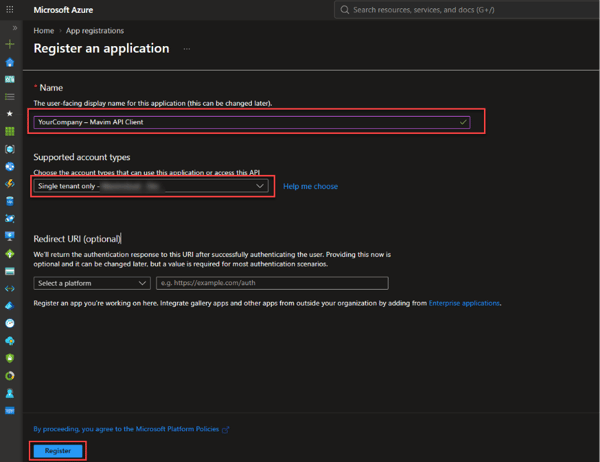
Select Register.
Copy and store: Application (client) ID
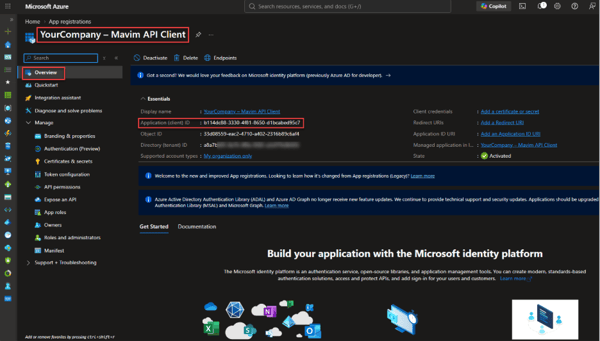
You will send the Application (client) ID to Mavim in one of the later steps, so this value will be required later.
Step 2 - Configure Authentication
Mavim supports the following authentication methods:
- Client Secret
- Certificate
- Federated Credential (Managed Identity)
At least one authentication method must be configured.
Option A - Client Secret Authentication
- In your new app registration, open Certificates & secrets.
- Under Client secrets, select + New client secret.
- Enter a description.
- Choose an expiration period.
- Click Add.
- Copy and securely store the secret value
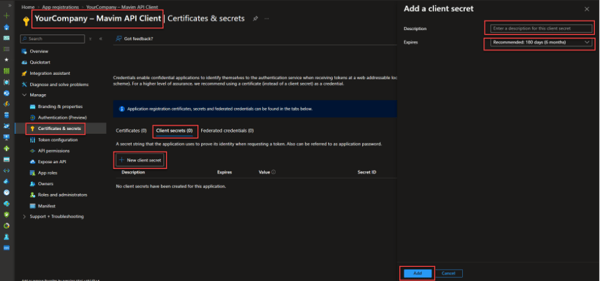
Important: The secret Value is shown only once. If it is lost, create a new secret. Do not send the client secret to Mavim. Only the Application (client) ID is shared.
Option B - Certificate Authentication
If your security policy requires certificate-based authentication instead of (or in addition to) a client secret, follow these steps. Otherwise, skip this step.
Generate a self-signed certificate (if you don't already have one)
PowerShell (Windows):
$cert = New-SelfSignedCertificate `
-Subject "CN=YourCompany-MavimApiClient" `
-CertStoreLocation "Cert:\CurrentUser\My" `
-KeyExportPolicy Exportable `
-KeySpec Signature `
-KeyLength 2048 `
-NotAfter (Get-Date).AddMonths(12)
# Export public key (.cer) for upload
Export-Certificate -Cert $cert -FilePath ".\MavimApiClient.cer"
# (Optional) Export private key (.pfx) for your application
$pw = ConvertTo-SecureString -String "YourStrongPassword" -Force -AsPlainText
Export-PfxCertificate -Cert $cert -FilePath ".\MavimApiClient.pfx" -Password $pw
Linux / macOS (OpenSSL):
openssl req -x509 -newkey rsa:2048 \
-keyout MavimApiClient.key \
-out MavimApiClient.cer \ -days 365 -nodes \
-subj "/CN=YourCompany-MavimApiClient"
You can also use a certificate from your organization's CA or a public CA.
Upload the certificate to your app registration
- In your app registration, open Certificates & secrets.
- Select the Certificates tab.
- Select Upload certificate.
- Browse to the public key file (.cer or .pem).
- Optionally add a description.
- Select Add.
After upload, you can note the Thumbprint for your own app configuration (optional). Your application authenticates by signing the client assertion with the certificate’s private key; Entra verifies it using the public certificate you uploaded. Important: Store the private key (.pfx / .key) securely. Never commit it to source control.
Note: Mavim does not require a certificate specifically. It requires a valid app-only token with api.access from an allow-listed app. Certificate vs secret is about how your tenant authenticates the client to Entra, not about a special Mavim permission. 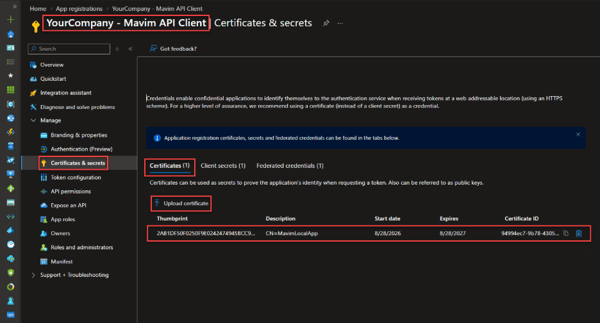
Using the certificate in a token request
Replace client_secret with a client assertion (a JWT signed by the certificate's private key). Most identity libraries handle this automatically.
MSAL (.NET / C#):
var certificate = new X509Certificate2("MavimApiClient.pfx", "YourStrongPassword");
var app = ConfidentialClientApplicationBuilder
.Create("{your-application-client-id}")
.WithCertificate(certificate)
.WithAuthority($"https://login.microsoftonline.com/{your-tenant-id}") .Build();
var result = await app.AcquireTokenForClient(
new[] { "https://adapps.mavimcloud.com/mavim.cloud.identity.core/.default" })
.ExecuteAsync();
Option C - Federated Credential (User-assigned Managed Identity)
If your application runs on Azure compute (VMs, AKS, App Service, Azure Functions), you can eliminate secrets and certificates entirely by federating the app registration with a User-assigned Managed Identity. If your security policy requires federated-based authentication instead of (or in addition to) a client secret and/or certificate, follow these steps. Otherwise, skip this step.
How it works
Azure workload (VM / AKS / App Service) → User-assigned Managed Identity → Federated credential on your App Registration → Entra ID issues token with aud = Mavim Identity Core Access
Prerequisites
- A User-assigned Managed Identity (UAMI) created in your Azure subscription.
- The UAMI assigned to the Azure resource that will call Mavim APIs.
- Note the UAMI's Client ID and Object (principal) ID.
Add the federated credential
-
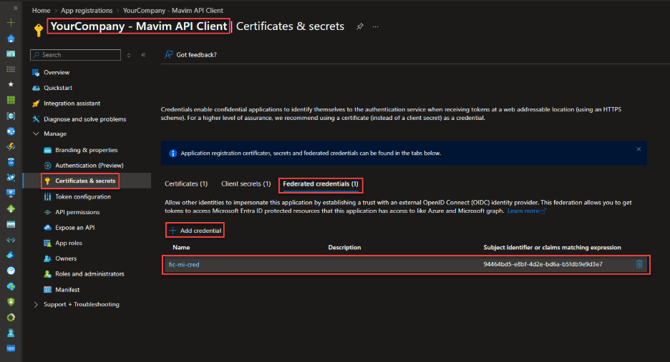
In your app registration, open Certificates & secrets.
-
Select the Federated credentials tab.
-
Select + Add credential.
- Choose the scenario (see table below) and fill in the fields.
| Setting | Value |
|---|---|
| Issuer | https://login.microsoftonline.com/{tenant-id}/v2.0 |
| Subject Identifier | The Object (principal) ID of the User-assigned MI |
| Audience | api://AzureADTokenExchange (default) |
| Name | e.g. mi-mavim-api-federation |
- Select Add.
Tip: If the Azure Portal shows a Managed Identity scenario picker, select it and choose the User-assigned Managed Identity from the dropdown — the fields are populated automatically.
Using the federated credential in a token request
MSAL (.NET / C#):
var miCredential = new ManagedIdentityCredential("{user-assigned-mi-client-id}");
var app = ConfidentialClientApplicationBuilder
.Create("{your-app-registration-client-id}")
.WithClientAssertion(async (cancel) =>
{
var token = await miCredential.GetTokenAsync(
new TokenRequestContext(new[] { "api://AzureADTokenExchange/.default" }), cancel);
return token.Token;
})
.WithAuthority($"https://login.microsoftonline.com/{your-tenant-id}")
.Build();
var result = await app.AcquireTokenForClient(
new[] { "https://adapps.mavimcloud.com/mavim.cloud.identity.core/.default" })
.ExecuteAsync();
Azure.Identity (simplified):
var miCredential = new ManagedIdentityCredential("{user-assigned-mi-client-id}");
var credential = new ClientAssertionCredential(
"{your-tenant-id}",
"{your-app-registration-client-id}",
async (cancel) =>
{
var token = await miCredential.GetTokenAsync(
new TokenRequestContext(new[] { "api://AzureADTokenExchange/.default" }), cancel);
return token.Token;
});
var tokenResult = await credential.GetTokenAsync(
new TokenRequestContext(
new[] { "https://adapps.mavimcloud.com/mavim.cloud.identity.core/.default" }));
Note: No secret or certificate is needed on the machine. The Managed Identity handles the trust chain.
Step 3 - Add the Mavim api.access application permission
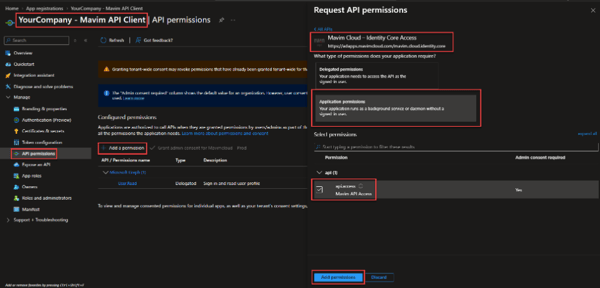
- In your app registration, open API permissions.
- Select + Add a permission.
- Open the APIs my organization uses tab (or search by name / Application ID).
- Search for Mavim Cloud – Identity Core Access. If it does not appear by name, paste the Application (client) ID: 51fb1b02-5c75-445f-9225-807e50623cd4.
- Select Application permissions (not Delegated permissions).
- Select api.access (display name: Mavim API Access).
- Select Add permissions
Expected Result
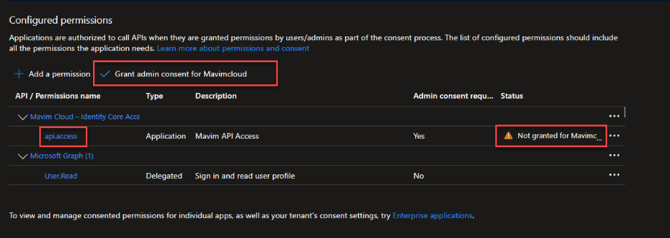
| Property | Value |
|---|---|
| API | Mavim Cloud – Identity Core Access |
| Permission | api.access |
| Type | Application |
| Status | Not Granted (until the next step) |
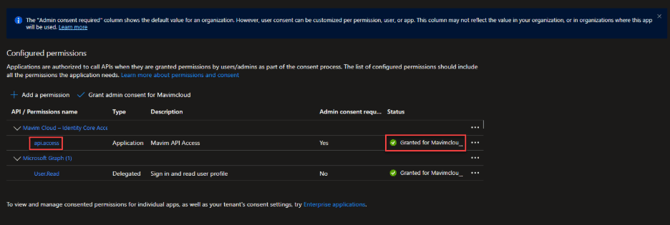
Step 4 - Grant Admin Consent
- Still on API permissions, select Grant admin consent for <your tenant>.
- Confirm when prompted.
- Verify that Status shows a green checkmark: Granted for <your tenant> for api.access.
Why This Is Required
Without Admin Consent:
- The api.access role will not be included in access tokens.
- Mavim API requests will be rejected.
Step 5 - Register the Application with Mavim
Provide the following information to your Mavim representative or Mavim Support (servicedesk@mavim.com).
| Information | Description |
|---|---|
| Organization Name | Your Company name |
| Directory (Tenant) ID | From app registration Overview |
| Application (Client) ID | From app registration Overview |
| Application Display Name | As registered in Entra ID |
| Contact Person | Name and email address |
What Mavim does next:
Mavim will allow-list the Application (Client) ID within your tenant.
Only allow-listed applications are authorized to access Mavim APIs.
Mavim stores (allow-lists) your Application (client) ID for your tenant. Only after this registration will tokens issued for your app be accepted for app-only API calls.
Do not share the client secret with Mavim.
Step 6 - Obtain an access token using client secret
Token request
POST https://login.microsoftonline.com/{your-tenant-id}/oauth2/v2.0/token
Content-Type: application/x-www-form-urlencoded
client_id={your-application-client-id}
&client_secret={your-client-secret}
&grant_type=client_credentials
&scope=https://adapps.mavimcloud.com/mavim.cloud.identity.core/.default
Expected Token Claims
The resulting access token should contain the following claims:
| Claim | Expected Value |
|---|---|
| aud | 51fb1b02-5c75-445f-9225-807e50623cd4 |
| tid | Your Tenant ID |
| azp / appid | Your Application (client) ID |
| roles | includes api.access |
| idtyp | app (app-only token) |
Step 7 - Call Mavim APIs
Authorization: Bearer {access_token}
Use the API base URL and endpoints provided by your Mavim contact.
Validation Checklist
| Validation Item | Completed |
|---|---|
| App Registration created | ☐ |
| Configured at least one credential for the application | ☐ |
| Application permission api.access added | ☐ |
| Admin Consent granted | ☐ |
| Application (client) ID sent to Mavim | ☐ |
| Mavim confirmed Application ID is registered | ☐ |
| Client Credentials token obtained with roles: ["api.access"] | ☐ |
| Successful authenticated call to a Mavim API | ☐ |
Troubleshooting
| Issue | Possible Cause | Resolution |
|---|---|---|
| Mavim Cloud – Identity Core Access cannot be found | Enterprise application not visible in tenant | See this link for the installation of Application ID 51fb1b02-5c75-445f-9225-807e50623cd4 |
| Permission remains "Not Granted" | Admin Consent not completed | Grant Admin Consent |
| Token has no roles claim | Permission or consent missing | Reassign api.access (Application type) and grant consent |
| Token has roles but API returns 403 | Application not allow-listed by Mavim | Contact Mavim to verify registration |
| AADSTS700016 | Invalid Client ID or Tenant ID | Verify the Client ID or Tenant ID in App Registration Overview |
| AADSTS7000215 | Invalid or expired Client Secret | Create a new Client Secret |
Security Recommendations
To maintain a secure integration:
-
- Treat the client secret as a credential; rotate it regularly and store it only in a secrets manager.
- Prefer certificate credentials over client secrets for production where your policies allow.
- Restrict who can manage the app registration (Owners).
- Do not embed secrets in source control, tickets, or email.
- Share only the Application (client) ID with Mavim—never the secret.