
Because a Mavim Manager database can be accessed by multiple users at once, certain features have been implemented in the software to ensure that you as a user are always looking at the latest information and can avoid accessing and making changes to a topic that is being edited by another user.
The first of these features is Refresh. At any time, you have the ability to refresh the database so that you can make sure you are looking at the latest information in the database.
This function can be accessed in two ways:
- From the context menu on the root of the database (
 ).
- Pressing the F5 key.
When the function is activated, the tree will be refreshed to show any changes made by other users active in the database.
Note that the context menu item is only available on the root of the database. When using the F5 key, the entire tree will be refreshed but the last selected topic will be selected automatically.
The next function is the Locking function. When working with a Topic, you may want to ensure that nobody else can make changes to the topic while you are working on it. To accommodate this, a locking mechanism has been implemented.
When a Topic is locked, the following elements will be locked for all other users:
- Changing the Topic name
- Changing the Topic Description
- Removing Topic Relationships
- Changing the level in the tree the Topic is on
The following actions can still be executed by other users:
- Adding relationships to the Topic
- Create a Coupled Copy of the Topic
- Publish the Topic directly from the yellow cabinet
- Move the Topic up and down in the tree view
When a Topic is locked, other users will see the following:
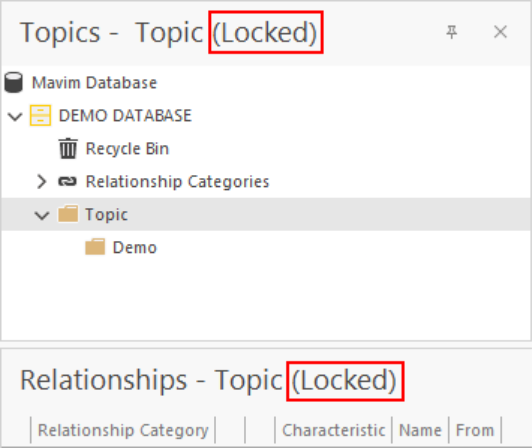
We will first have a look at how you can lock a single Topic in a Mavim Database.
- Select the Topic you want to lock.
- Open the context menu and select Lock > Lock Topic.
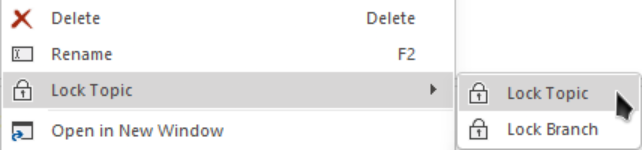
The Topic is now locked for you. You will be the only user who can edit the Topic's description and name.
It is also possible to lock a branch in the tree which will lock the selected Topic and all child Topics under it. Note that when you lock a branch, you cannot unlock an individual Topic in that branch. The only way to unlock a child topic is to remove the lock on the parent Topic.
- Select the Topic for which you wish to lock the branch.
- Open the context menu and select Lock Topic > Lock Branch:
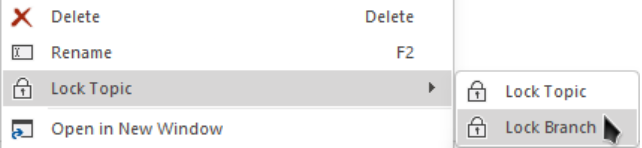
Now the selected Topic and all of it's sub-topics will be locked for all other users.
If you have locked a Topic, it is important to remember to unlock the Topic or Branch to allow other users to edit the topics if needed. Use the following steps to unlock a Topic:
- Select the locked topic.
- Open the context menu and select Unlock.
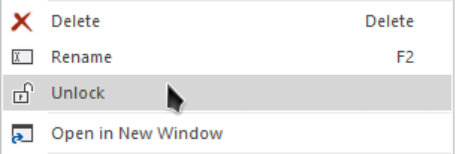
The Topic will now be unlocked for all users.
Note: If a Topic is locked and you do not see the Unlock option in the context menu, this means that a parent Topic and it's branch has been locked. You will need to remove the lock from the parent Topic.
