
In order to use the Mavim Manager SharePoint import and export feature, the tenant administrator needs to add an app registration with specific permissions. This app registration will provide a ClientID necessary to use the SharePoint import and export from the Mavim Manager. The App Registration is the way for an tenant Administrator to provide permissions / allowance for its users to use the Mavim Manager to access the SharePoint environment.
In this document, you learn the minimal steps on how to register an application in Microsoft Entra ID. This process is essential for establishing a trust relation between Mavim Manager and Microsoft SharePoint. You can follow the steps in this document or review the Microsoft documentation how to “Register an application in Microsoft Entra ID”.
Registering new App Registration in Microsoft Entra ID
At the end of this we will have created a App Registration specifically for the use of Mavim Manager SharePoint Import and Export. The app registration will have the following configuration:
Redirect URI: For Mobile and desktop application platform
https://login.microsoftonline.com/common/oauth2/nativeclient
API permissions: Delegate SharePoint AllSites.Write
Provide the Application (client) ID and Directory (tenant) ID to the users who are using the Mavim Manager SharePoint Import and Export.
Prerequisites
- Azure tenant administrator with minimal the role of “Application Administrator” who can create and manage all aspects of app registrations and enterprise apps.
Steps
Follow these steps to create the app registration:
- Sign in to the Microsoft Entra admin center.
- If you have access to multiple tenants, use the Settings (gear) icon in the top menu to switch to the tenant in which you want to register the application.
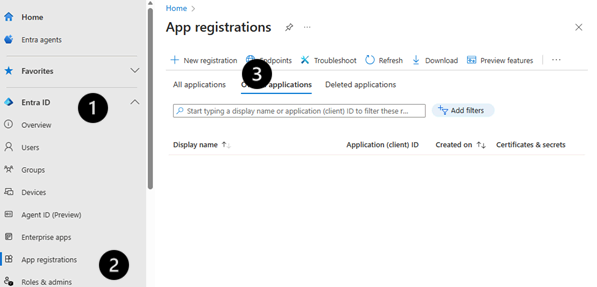
- Browse to Entra ID > App registrations and select New registration.
- Enter a meaningful Name for your app, for example: “Mavim Manager SharePoint Import and Export”.
For Supported account types, select Accounts in this organization directory only. You can change this as required by your organisation, and it can be changed at any time.
For the Redirect URI select Public client/native (mobile & desktop) and provide the value: https://login.microsoftonline.com/common/oauth2/nativeclient
And click the button Register to create the new app registration.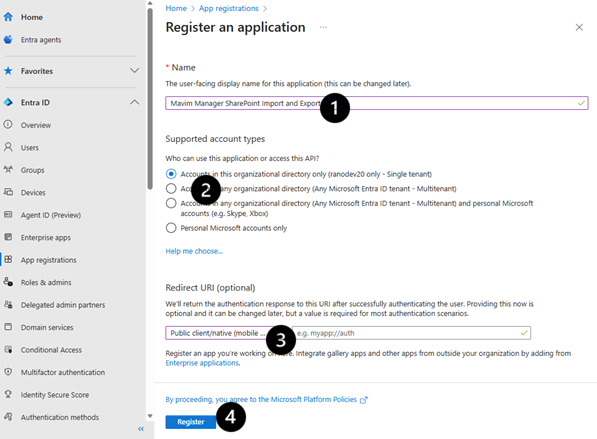
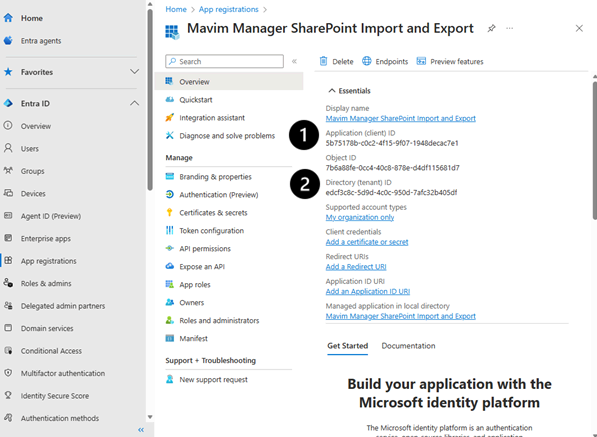
- After the new App Registration is created you need to write down the values of the Application (client) ID and Directory (tenant) ID to provide this to the users of Mavim Manager which wants to use the SharePoint import or export feature.
- Next we needs to configure the authentication redirect URL. Go to Authentication and click on the button “Add Redirect URI”.
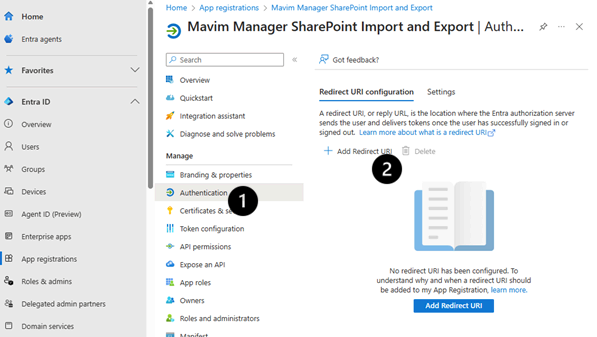
Then choose for “Mobile and desktop applications”.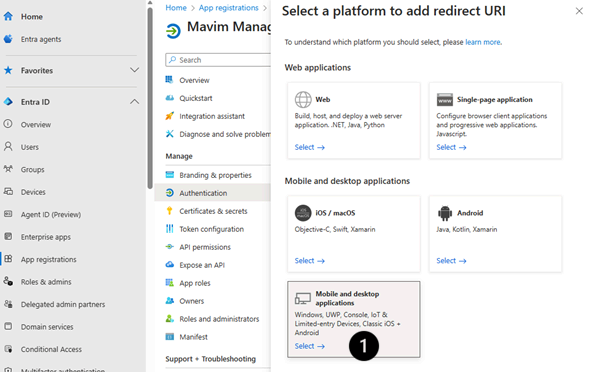
Here select for the Redirect URI the following option: “https://login.microsoftonline.com/common/oauth2/nativeclient”
And click on the button Configure.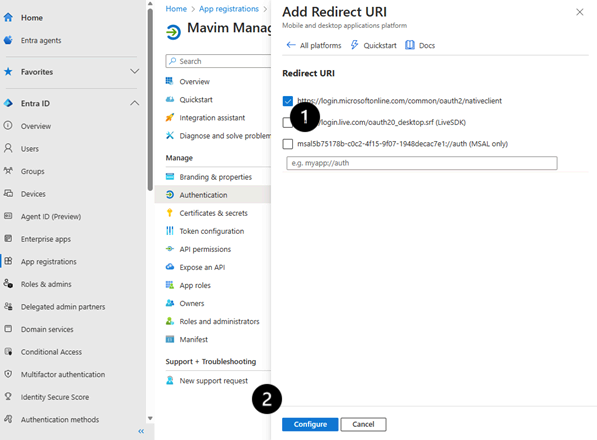
- Next we need to provide permissions for this App registration so the users are allowed to access SharePoint from within the Mavim Manager. Therefor we need to go the API permissions, and click the button “Add a permission”
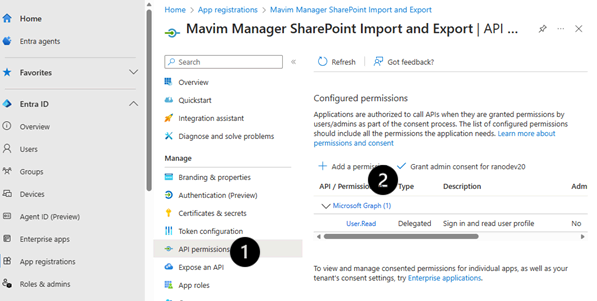
Sroll down in this list until you find the application SharePoint and click that button. We do not use Microsoft Graph SharePoint permissions.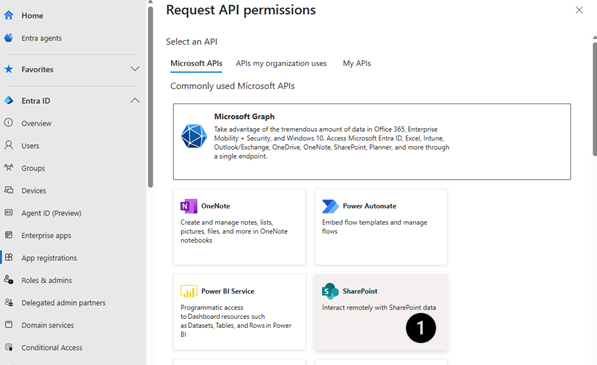
Click on “Delegated permissions” as the users will use their own identity to access SharePoint. To provide permissions to access the SharePoint sites the “AllSites.Write” needs to be selected. This allows the users using Mavim Manager to create and read items from document libraries and lists in all the site collections on behave of the signed-in user. Click on the button “Add permissions”.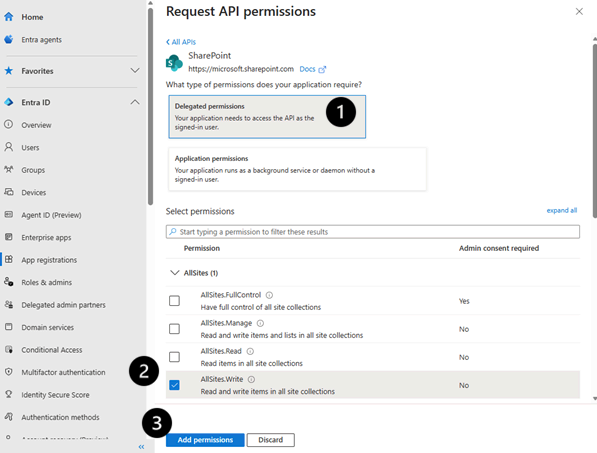
To provide the access from the tenant administrator you need to grand the permissions. In order to do this click the button “Grand admin consent for ...”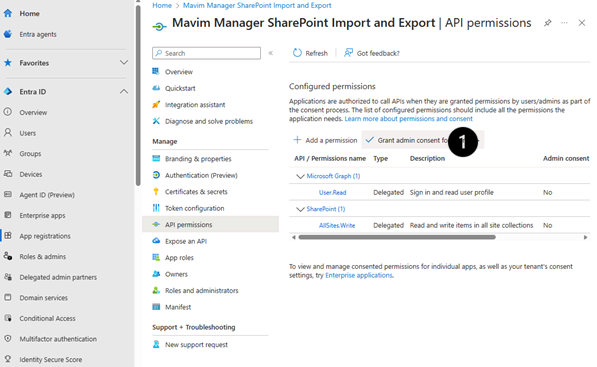
Provide the Application (client) ID and Directory (tenant) ID to the users who are using the Mavim Manager SharePoint Import and Export. This information can be found in the Overview under essentials.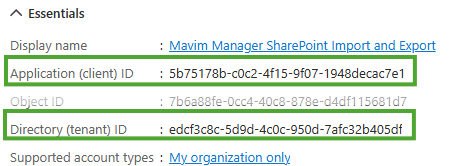
Do note because we have chosen to support only my organization, means that only users registered in the tenant can access SharePoint using Mavim Manager. Users from other tenants will not be able to connect even if they are able to connect to SharePoint using the browser.
