
The Mavim screen consists of a number of screens or panels. You can recognize a screen by its title bar, for example:

You can move the Mavim screens by clicking the title bar and dragging the screen to the required location. While moving a screen, a coloured block shows where the screen will be placed when you release the mouse button.
Note: You can always restore the default settings. See View options.
There are a number of possibilities for moving a screen:
Place screen beside an existing screen:
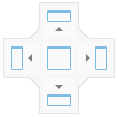
Drag the mouse to the middle of the existing screen, until you see the following set of symbols. Release the mouse button over one of the four directional symbols to place your screen above, right left or below the existing screen. The newly moved screen will acquire the height and width of the first screen.
Place a screen below an existing screen, as a tab:
If you release the mouse button over the central symbol, the screen will be incorporated into the first screen as a tab.

You can then change the screen content by clicking the tab. Example:

The default position of a tab can be set in relation to a screen. See Miscellaneous.
Place screen over full height or width:
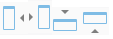
If you release the mouse button over one of the separate directional symbols (i.e. not over the directional symbol shown above), the screen will be placed over the full height or width, in accordance with the indications on the symbols.
Place Screen:
If you release the mouse button and are not over a symbol, the screen is positioned on top of the first screen, in the place where the mouse button is released. The screen can be returned to its original position by double-clicking its title bar.
