
You can change the layout of a flowchart. General alterations the layout of charts are described in Layout. In addition to these the following settings can be used to align the shapes:
Align Automatically:
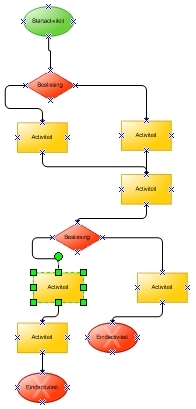
If you right-click outside the screen, you can execute the layout function. This function automatically adjusts the layout. Where possible, the process steps are set out in steps under one another. There are two important options (also, see Create Flowchart ):
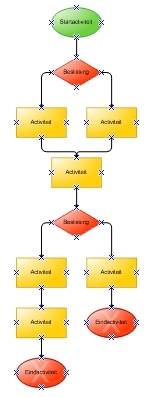
1. Centre Merged Branches. If this option is selected, Mavim will lay out the process tasks in which no splits occur under one another.
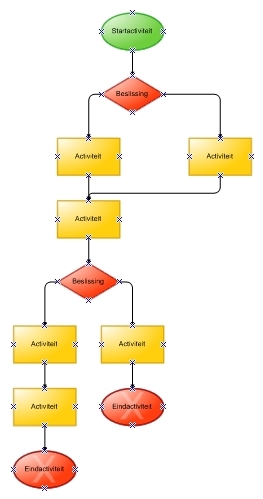
2. Centre Shared Decisions. If this option is selected Mavim will centre the process tasks.
|
|
|
|
|
Example of a chart for which the Layout function has been applied. |
..with the Centre Merged Branches option enabled |
... with the Centre Shared Decisions option enabled |
Align Eternal Topics:
Topics related to the process (such as documents and their dispatch instructions) can be aligned with topics to which they are related in the chart:
1. In the chart, select the topic you wish to align.
2. Right-click and select Align External Topics.
Chart Orientation:
Charts can be orientated either vertically or horizontally. Open the Options screen (context menu) to change this:
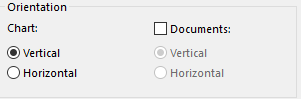
Here you can change the orientation of the chart itself and also the Documents attached to topics of the chart.
