When creating charts in Visio in conjunction with Mavim Manager, a number of colors have been assigned to shapes to provide the user with information on the shape state. In this section we will cover which colors you will see and what they mean. Some examples will also be included.
In general, the following can be assumed:
GREEN: If a shape has been added to a chart and the chart has not yet been saved, the shape will be shown in green.
MAGENTA: If you make a change to a shape, in most cases links between shapes, they will be shown in magenta until saved.
BLACK: When dealing with links, if they are shown in black they are valid and have been saved.
RED: Means there is an error.
Here are a few examples.
New shapes added to a Flowchart:
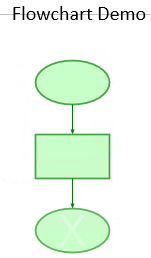
Once the chart has been saved you will see the following:
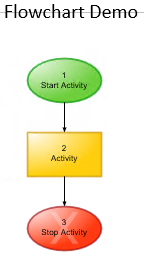
The shapes will take on the color scheme defined in the used stencil.
Now if we disconnect one of the links, we can see that it turns red to indicate an issue with the chart:
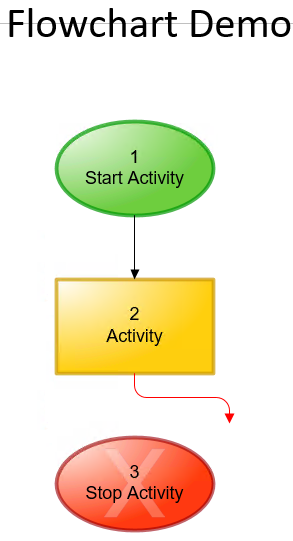
If you reconnect the link it will turn black again. Even if you haven't saved, it will turn black assuming you reconnect it to the same shape. If you connect it to another shape it will take on the magenta color:
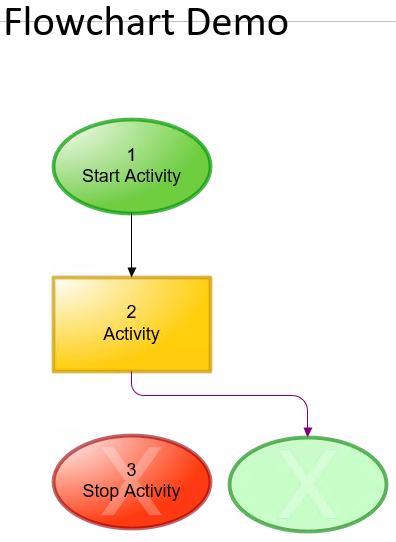
Saving this chart will give the shape the appropriate color and make the link black once more:
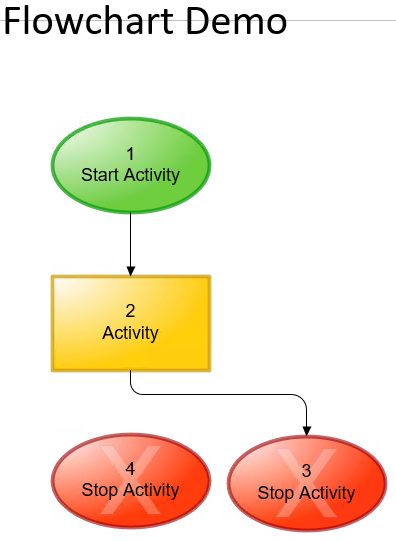
Another example is if you were to add a topic to the tree structure within an existing chart that is currently opened in Visio. In this case we also have the Automatic Layout option enabled.
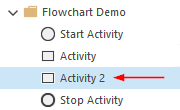
The result in Visio is shown below:
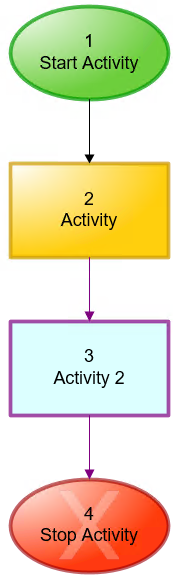
Notice that Activity 2 has a magenta border and the shape itself is shown in a cyan color. Also note that the link between Activity and Activity 2 is magenta as is the link between Activity 2 and Stop Activity.
Once we save the chart, the appropriate colors are once again assigned to each shape within the drawing.
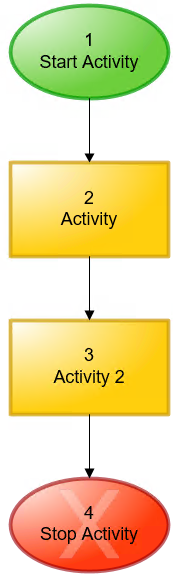
In the case of an ArchiMate chart, placing new shapes will look like this:
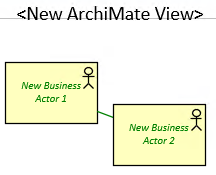
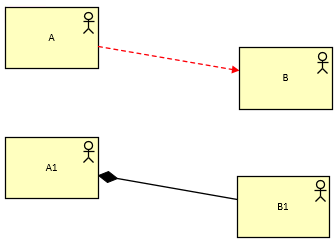
In the following example, if you have the Show ArchiMate errors option enabled, invalid connections between two ArchiMate shapes are shown in red: