
When a chart has been created, it is saved internally as a Visio file in the database. When changes are made afterwards in the part of the tree that is depicted in the chart, the Visio file will no longer match the contents of the database.
When creating a version, you therefore have the option to compare the existing Visio files with the contents of the database. By default this option is enabled in the Create Version window:
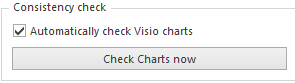
It is possible to either create the version, or click the Check Charts immediately button. In both cases the charts will be checked for consistency. In the latter case no version will be created after finishing the check.
If you want to create a version with inconsistent charts, you can uncheck the option Automatically check Visio charts before creating the version.
If a chart is inconsistent with the contents of the database, you can fix this as follows:
1. A window with the inconsistent charts will appear:
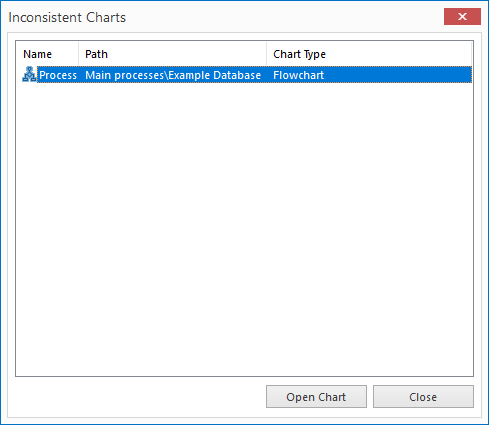
2. Select the listed charts one by one and click Open.
3. The selected chart will now be opened displaying the current contents of the database. If the chart is correct, select Layout from the right-click menu on the drawing. Then save the chart (see
Save Chart for an explanation). If the chart is not correct, change it to how it should be and save it.
4. If a chart is no longer inconsistent, it will disappear from the list. When the list is empty, you can click Close.
5. When creating a version, the version will now be created.
Note: If you click Close before all of the charts have been opened, while you are making a version, the version will contain the unopened inconsistent charts. This may result in dead links.
