
To generate a manual:
1. Select the topic in the topic tree that contains the information you wish to print.
2. Go to File > Publication > Word Document.
The following window will appear:
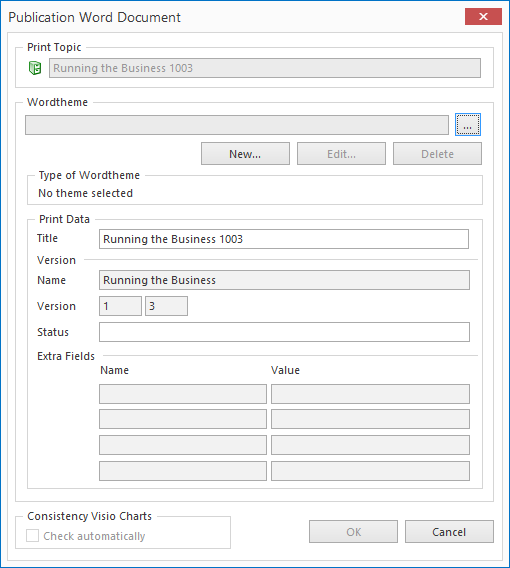
3. If necessary, select a different topic for the Print Topic field from where the print job should start.
4. In the Theme field, choose a theme for your manual. You can use either an existing theme or create a new one.
Please note: it is not possible to print without a theme.
There are two types of theme:
Theme in Paragraphs Format for printing handbooks and Theme in Columns Format for printing work instructions. Choose a theme suitable to your needs.
5. Print data: This is the data related to the making of a manual which is used each time a new manual is generated.
a. Title: This is the title of the manual. By default, this is set as the name of the topic with which the print run will begin. This can always be changed before printing.
b. Version: If a distribution compartment (or part of a distribution compartment) is printed, the value of the field Name and the Number given to that distribution compartment can no longer be manually altered.
c. Status: The version status is always set by a user. The meaning of this is decided by users. Think of terms such as "definitive" or "for evaluation".
d. Extra Fields: Within the theme it is possible to define 4 additional fields. Depending on your choice 0, 1, 2, 3, or 4 fields can be named. If an extra field does not have a name it is not defined within the theme and therefore cannot appear in the Word template.
6. Consistency Visio Charts. If you select the Check Automatically option, the Visio schemas that appear in the manual will be automatically checked for consistency.
7. OK: Mavim will ask for a file name for the prepared Word document, after this the manual is generated.
The Save dialog box appears. Here you can specify, for the Word document to be generated:
· the filename
· storage location
Once the document has been generated, you will be given the option to browse the file location of the generated document: 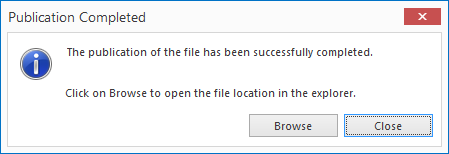
Note: The Browse button is only available when working with Mavim Manager locally. When working in our cloud environment, the browse button and the text "Click on Browse to open the file location in the explorer." is not visible.
