
On the General Tab, the Word Template of a Word Theme can be modified. Mavim always uses a copy of the original template and any changes you make will be saved in the copy.
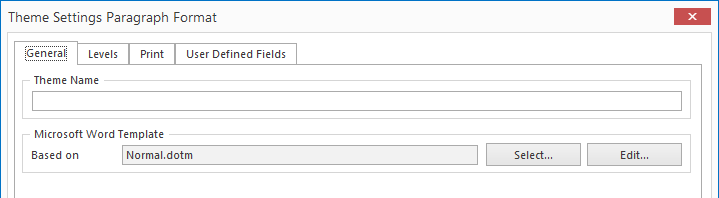
Using the Edit button under the option Microsoft Word Template, a Word session will be executed in which the template can be modified.
You can change the template as you wish, e.g. you can add, change or remove footnotes, or include more standard pages, like a title page, a table of contents etc.
Note: On clicking Edit, an error may occur in Word. See Error when using macros.
Mavim has added a menu of Mavim functions to the Word session. This menu contains two items:
1. Start Position
2. Insert Field
Start Position
With the Mavim Functions menu you can indicate where the manual contents should be printed in the template. Using the Mavim Function Set Start Position, you determine the start position of the contents of the manual. Mavim will insert the contents of the manual from that point onwards.
If the start position is missing in the template, the manual contents will be placed at the end of the template contents.
Insert Field
There are Mavim functions for:
|
· Title |
By default, this is the name of the topic which will be printed first. If generating a manual, the value of this field can be changed at Title. |
|
· Revision Name |
If a distribution set is printed, the revision name is the same as the name of the compartment without the revision number, and cannot be changed. Otherwise, you can enter a name. If generating a manual, the value of this field can be changed at Version Name. |
|
· Major Revision Number |
If a distribution set is printed, the revision number is the same as the name of the compartment without the revision name, and cannot be changed. Otherwise you can enter a random number. If generating a manual, the value of this field can be changed at Version Number. |
|
· Minor Revision Number |
If a version set is printed, the revision number is the same as the name of the compartment without the revision name, and cannot be changed. Otherwise you can enter a random number. If generating a manual, the value of this field can be changed at Version Number. |
|
· Status |
This is a field that can be used as a "trial set" or a "definitive version". If generating a manual, the value of this field can be changed at Version Status. |
|
· Username |
User name with which the user is logged into the Mavim database. |
|
· System Username |
User name with which the user is logged into Windows. |
|
· Date Version |
If a version set is printed, this is the date on which the version was created. Otherwise this field value is empty. |
|
· Title of Supertopic |
Topic name that is directly above the topic in the title, i.e. its supertopic. |
|
· Path of Title |
The topic at the highest level of the branch in which the topic title is present. |
|
· Database Name |
Name and, for an Access database, path of the Mavim database. |
Additionally, in the Mavim Word Theme four extra fields can be defined that can also be used as fields in the template. Only those fields that are defined are visible. See Generate Manual. The use and meaning of these fields is user-definable.
When you have finished editing the template, you can save it and return to Mavim.
