
It is possible to spell-check the text in the Description screen. You can do this while typing
(see Check spelling as you type) or afterwards (see Spelling).
Check spelling as you type:
It is possible to check spelling as you type in the Description screen. To activate this function:
- Place the cursor in the Description screen.
- Select the Tools tab followed by Spelling.
- Select Check spelling as you type.
Any words not found in the dictionary are marked like this: .
- Open the context menu for the marked word. You will see a list of alternatives and the options Add to User Dictionary and Ignore All.
- Is one of the alternatives the correct spelling? Click the word to choose it to replace the misspelled word.
- Is your spelling of the word correct? Click:
- Ignore All: if you do not want to this word to be marked as incorrect again in this description screen.
- Add to User Dictionary: if you want to add the word to your user dictionary, so that it is considered a proper spelling in every future spell check.
Spelling
You can run a spell check in the Description screen. It is possible to do this either for the active description screen only, or for several description screens in a row.
Spell check in the active Description screen:
- Place the cursor in the Description screen.
- Select Spelling from the Tools tab.
Note: You can enable the spell checker directly using the F7 key.
For every word that is not in the user dictionary, a list with suggestions for alternative spellings appears: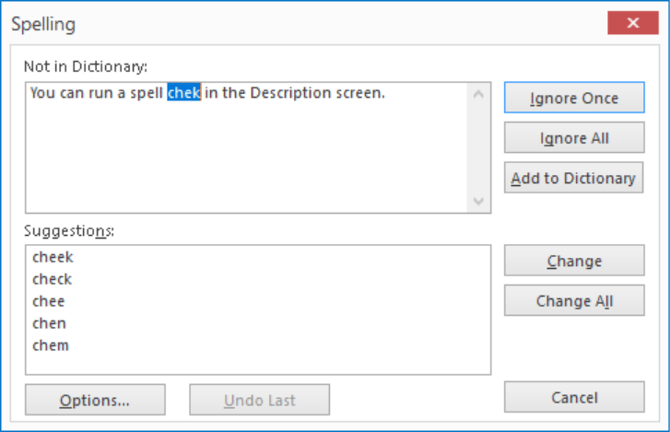
- Choose one of the following options:
- Ignore Once; the word remains unchanged, but Spelling will ask again if the word appears in other places in the text.
- Ignore All; the word remains unchanged and will not be checked again if it appears in other places in the text.
- Add to Dictionary; this word will be added to your user dictionary and never reappear in a spell check again.
- Change; only the active word will be changed to the spelling you selected.
- Change All; the word will be changed everywhere it appears in the text.
- Cancel; stop Spelling.
Spell-checking in multiple Description screens:
- In the Topics screen select the topic whose subtopics you want to spell check.
- On the Tools tab select Spelling in Subtopics.
Note: To directly run Spelling in Subtopics, press the keyboard shortcut CTRL+SHIFT+F7. - The procedure is the same as the spell check in the active Description screen, except that the spell check will jump from one Description screen to the next.
Spelling Options:
There are several options available for the spelling checker in Mavim Manager:
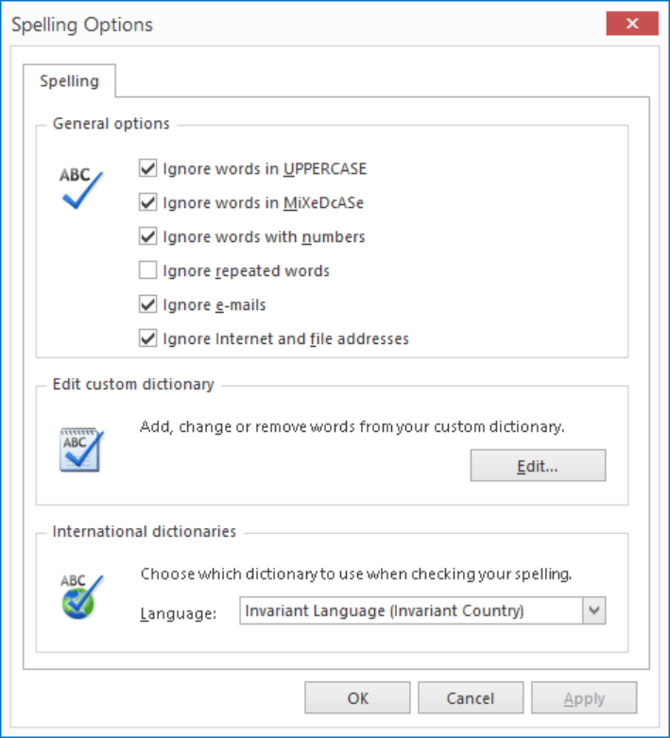
Ignore words in UPPERCASE: Words that are all in uppercase will be excluded from spell checking results.
Ignore words in MIXeDcASe: Words that are made up of mixed case letters will be excluded from spell checking results
Ignore words with number: Any words that have numbers in them will be ignored.
Ignore repeated words: If you ignore a certain word and this option is enabled, it will be ignored for the rest of the session.
Ignore e-mails: If the spell checker encounters any e-mail addresses, they will be ignored.
Ignore Internet and file addresses: Any text with http:// or //filelocation/ etc, will be excluded from the spell checker.
Edit Custom Dictionary:
In some cases, you maybe have terms that are specific to your company. These can be added to the custom dictionary. Clicking the Edit button here will allow you to manage your custom dictionary.
International Dictionaries:
Here you can select which language should be used when spell checking.
