Introduction
Microsoft regularly releases updated versions of the Business Process Catalog (BPC). While importing a new catalog package is the quickest way to get the latest content, it also replaces your existing catalog. For organizations that have invested time in customizing their BPC, this approach is often not practical.
The Mavim BPC in-place update solution allows you to apply Microsoft updates while preserving your existing customizations. New content can be added automatically, existing content can be selectively updated, and individual BPC structures can be synchronized independently.
Benefits of the In-Place Update Solution
Using the BPC update solution enables you to:
- Apply the latest Microsoft Business Process Catalog updates.
- Retain organization-specific customizations.
- Automatically create newly introduced topics.
- Control which fields are updated.
- Update individual BPC structures independently.
- Maintain existing Mavim topic relationships and configurations where appropriate.
Before You Begin
Before starting the update process, ensure you have:
- Access to the target Mavim database.
- A valid Mavim Improve license.
- Administrator access if configuration topic IDs need to be retrieved.
- The latest Microsoft Business Process Catalog release files.
- Export reports from the Mavim structures you intend to update.
Important: Download all required Microsoft BPC release files before beginning the synchronization process.
Protecting Customized Content
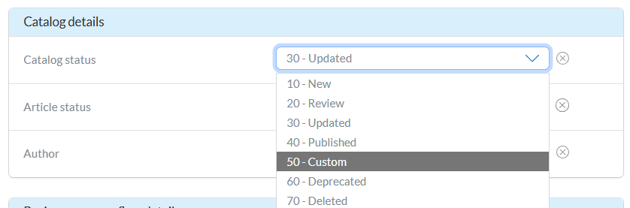
The update process uses the Catalog Status field to determine which topics can be updated.
| Catalog Status | Description |
|---|---|
| 10 - New | New topic introduced by Microsoft |
| 30 - Updated | Existing topic updated by Microsoft |
| 40 - Published | No changes identified in the latest release |
| 50 - Custom | Customer-managed topic that should not be updated |
Preventing Updates to Customized Topics
If a topic has been customized and should not be overwritten:
- Open the topic in Mavim.
- Set the Catalog Status to 50 - Custom.
Topics marked as 50 - Custom are excluded from synchronization updates, ensuring your custom content remains intact.
Step 1: Download the Latest Microsoft BPC Release Files
* Download the latest Business Process Catalog release package from Microsoft.
Prepare the Business Process Catalog File
Before using the downloaded Business Process Catalog workbook:
- Open the Excel file.
- Sort the entire worksheet by the Process Sequence ID column.
- Save the workbook.
This step is required to ensure newly introduced scenarios are connected correctly to their associated business processes during synchronization.
Step 2: Generate the Mavim Mapping Report
The update solution relies on a mapping between Microsoft catalog IDs and your Mavim topic IDs. This mapping is generated using a custom report in Mavim.
Create the Report Definition
If you do not already have a report available:
- Open the target database in Mavim Manager.
- Navigate to the Business Process Catalog (Why) structure.
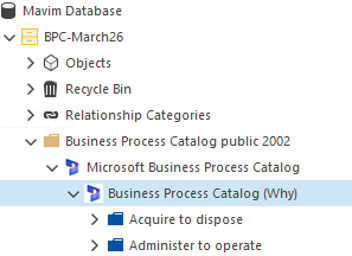
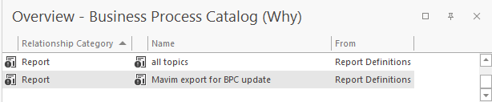
- Create a new report.
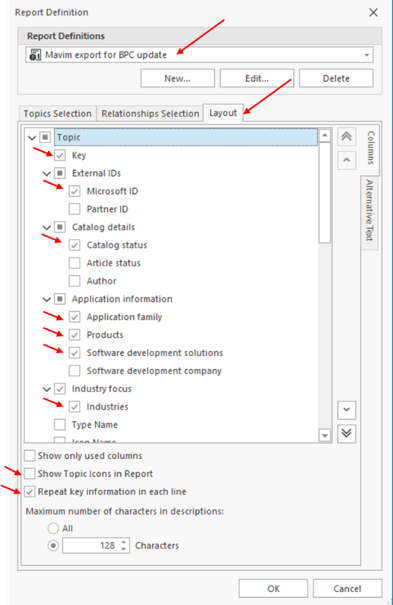
- Name the report: Mavim export for BPC update
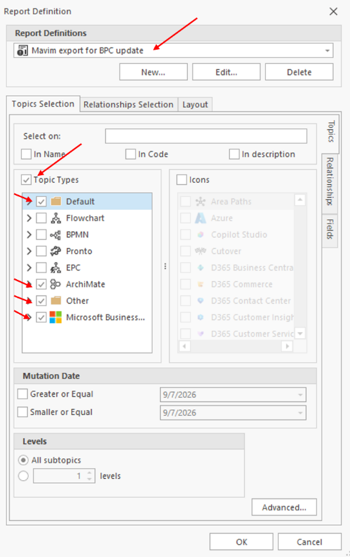
Topics Selection
Enable the following topic categories:
- Default
- ArchiMate
- Other
- Microsoft Business Processes (if available)
Required Fields
Include the following fields in the report:
- Key
- Microsoft ID
- Catalog Status
- Application Family
- Products
- Software Development Solutions
- Industries
Report Settings
Configure the report as follows:
- Show Topic Icons in Report: Disabled
- Repeat Key Information in Each Line: Enabled
Once configured, run the report.
Export the Report
After generating the report:
- Select Export Report.
- Save the file to Tempdisk to trigger download in your browser
- Include both the tree name and environment name in the file name.
Example:
Mavim export for BPC update - BPC - Production.xlsx
Store this export together with the Microsoft release files for use during synchronization.
Repeat for Additional Structures
If you are updating more than one BPC structure, repeat the export process for each starting topic, such as:
- Business Process Catalog (Why)
- Deliverables (What)
- Other BPC structures included in your update scope
The same report definition can be reused across all structures.
Note: Multiple rows for the same topic are expected when topics contain multiple values in fields such as Products or Application Families.
Step 3: Apply Required Template Updates
The synchronization solution updates content and field values but does not automatically introduce structural template changes.
Before running the update, review the Microsoft release documentation and manually add:
- Newly introduced fields
- New related category values
- Updated templates
- New diagrams where applicable
This ensures your Mavim environment is ready to receive the updated content.
Step 4: Configure the Update Solution
Open the BPC synchronization portal and sign in using an account that:
- Has an active Mavim Improve license.
- Has access to the target database.
Upload the Required Files
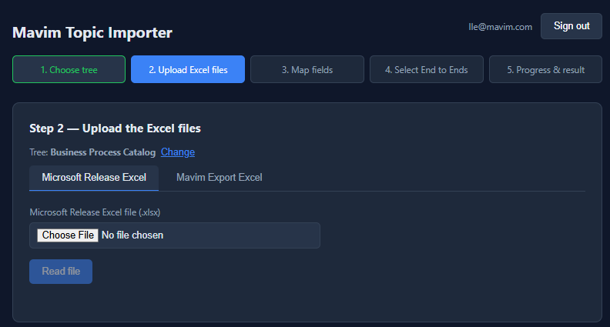
Microsoft Release File
The latest Business Process Catalog Excel workbook downloaded from Microsoft.
Mavim Export File
The mapping report generated from your Mavim environment.
After selecting each file, choose Read File to load the data.
Configure Field Mapping
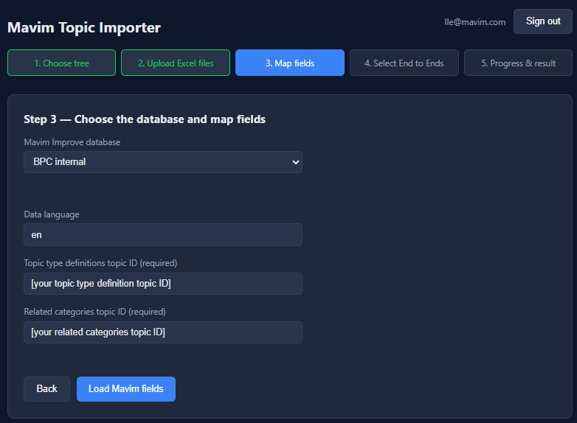
Select the target database and configure the required parameters.
Required Parameters
| Parameter | Description |
|---|---|
| Data Language | Only adjust if the database uses a language other than English |
| Topic Type Definitions Topic ID | Required |
| Related Categories Topic ID | Required |
Finding the Topic Type Definitions Topic ID
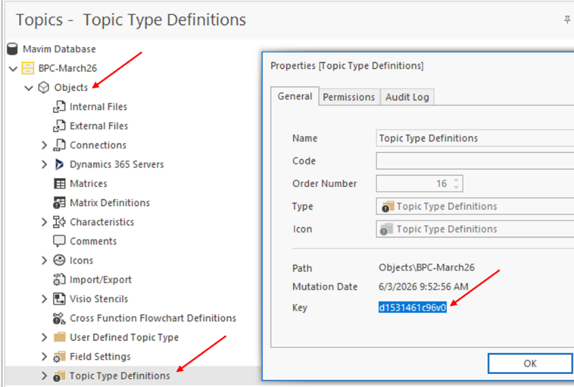
- Open the database in Mavim Manager.
- Navigate to Objects.
- Select Topic Type Definitions.
- Open the properties window.
- Copy the value from the Key field.
Finding the Related Categories Topic ID
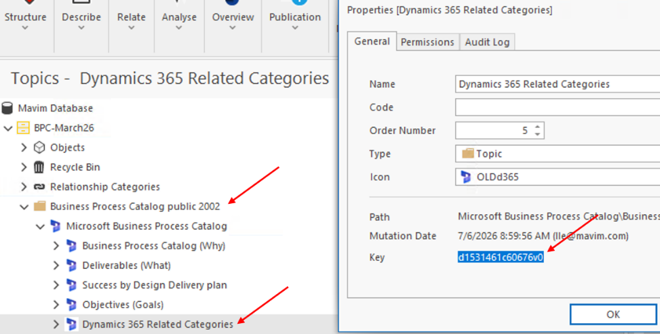
- Navigate to the Business Process Catalog structure.
- Select Dynamics 365 Related Categories.
- Open the properties window.
- Copy the value from the Key field.
Review Field Mapping
Select Load Mavim Fields to display available fields and review the proposed mappings.
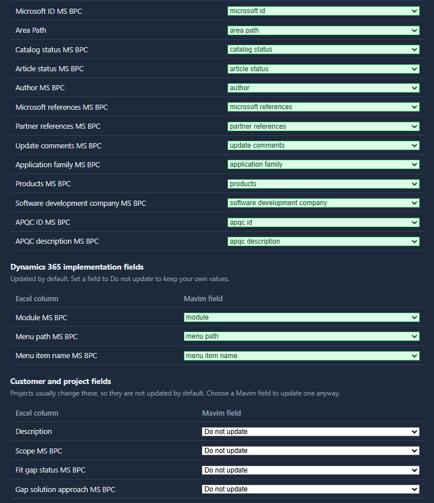
The fields are grouped into several categories.
Microsoft-Maintained Fields
These fields are controlled by Microsoft and typically should be updated.
Dynamics 365 Implementation Fields
These fields support implementation-specific information and should be reviewed before updating.
Customer and Project Fields
These fields are commonly customized during project delivery and are typically configured as Do Not Update to protect customer-specific information.
Informational Columns
The following columns do not require mapping:
- ID
- Work Item Type
- Title 1-8
- Assigned To
- State
- Iteration Path
After reviewing the mappings, select Continue to End to end selection
Step 5: Execute the Update
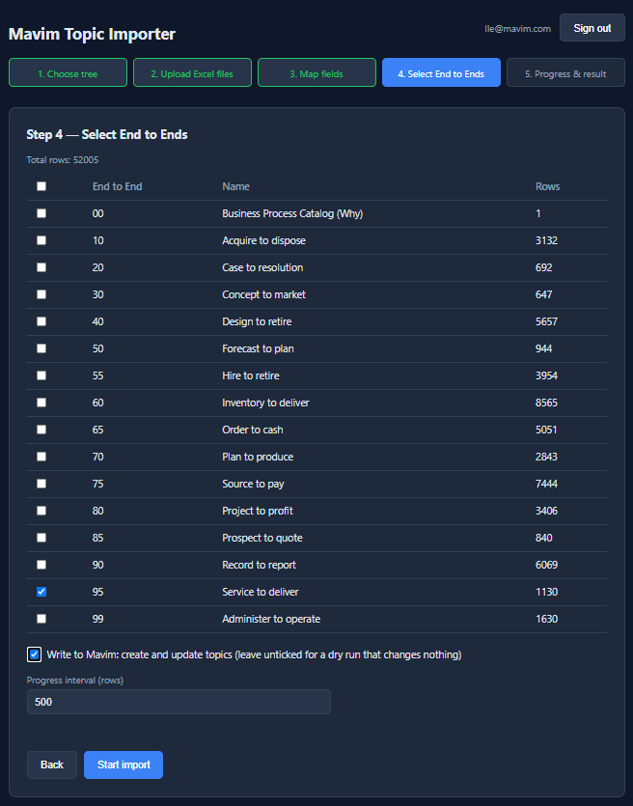
For the Business Process Catalog structure, select the End-to-End processes you want to synchronize.
For other structures, synchronization can be started immediately.
Before Starting
Verify that the option to create new topics is enabled.
How the Synchronization Works
The synchronization runs in two stages.
Stage 1: Create New Topics
Topics identified as 10 - New are created in the target Mavim database.
Stage 2: Update Existing Topics
Topics identified as either:
- 10 - New
- 30 - Updated
are evaluated and updated based on the field mappings selected during configuration.
Depending on the size of the release and the number of selected structures, the synchronization process may take several hours to complete.
Review the Results
After synchronization finishes, a summary is displayed showing:
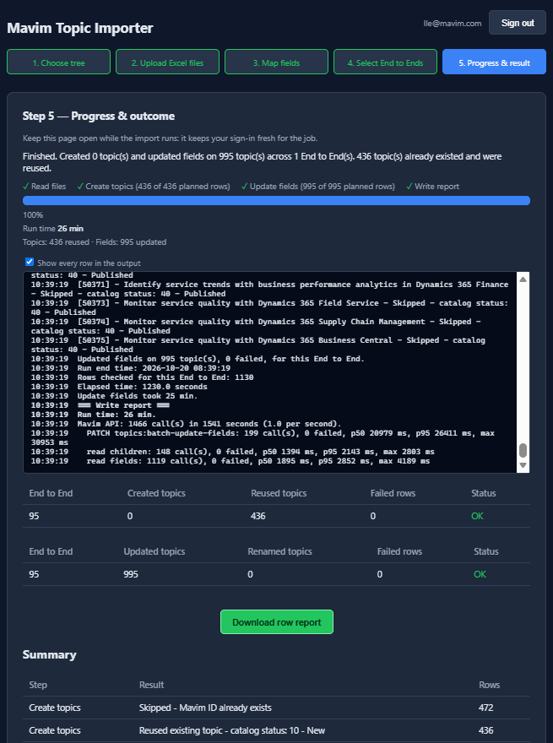
- Topics created
- Topics updated
- Processing statistics
- Synchronization results
An Excel log file is also generated.
The log provides a detailed audit trail showing:
- Which topics were created
- Which topics were updated
- Which fields changed
- The resulting Mavim topic IDs
- Any warnings or processing exceptions
We recommend reviewing this log after every update cycle to validate the results before making the updated content available to business users.

Best Practices
- Always test updates in a non-production environment first.
- Mark customized topics as 50 - Custom before synchronization.
- Download and archive synchronization logs for audit purposes.
- Review Microsoft release notes before each update.
- Validate newly created topics after synchronization completes.
- Confirm that new fields, templates, and related categories have been added before running the update.
By following this process, you can keep your Business Process Catalog aligned with the latest Microsoft releases while preserving the customizations that make the catalog valuable to your organization.