
You can change a number of general settings for the Description screen:
Select the Layout tab followed by Options from the Description Screen group. The following window appears:
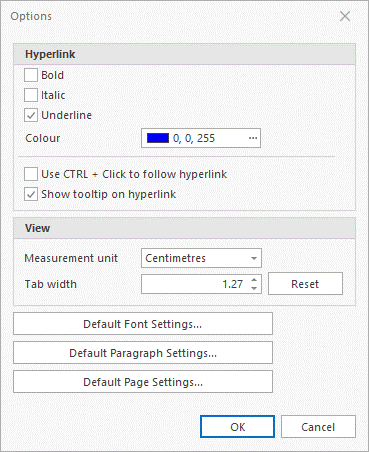
Hyperlink Style and Color:
You can change the style (see Hyperlinks ) or colour (see Set Colors) of hyperlinks.
Note: Changing these settings only works for hyperlinks to be made and not existing hyperlinks.
Use CTRL + Click to follow Hyperlink:
Normally a user can access a hyperlink with a single mouse click. By enabling this option, a hyperlink has to be clicked whilst depressing the CTRL key.
Note: Changing these settings effects all hyperlinks.
Show tooltip on hyperlink:
By enabling this option a tooltip will appear when you hover the mouse over a hyperlink that clearly shows to which topic the hyperlink is referring. This is very practical for hyperlinks for which the text has been change. See also Create Hyperlink.
Measurement Unit:
Measurements are used on the Ruler (see Ruler), and in several windows relating to the Description screen. Here you can select whether you want those measurements to be in centimetres or inches. When you switch from one measurement unit to the other; all values will be converted and may be rounded off.
Tab Width:
Here you can configure the distance of tabs in the description screen.
Default Font Settings:
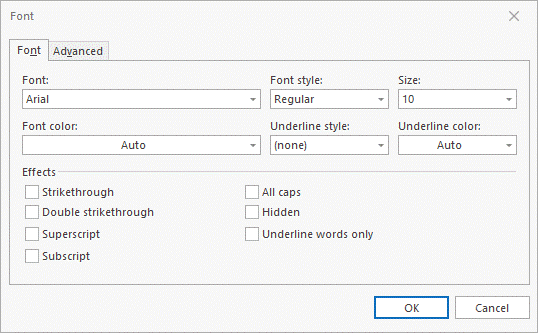
On this screen you can configure the default Font for the description screen of all topics.
Note: Any changes made to the default font settings will be applied to the entire database for all users.
Default Paragraph Settings:
These options will allow you to change how paragraphs are formatted for all newly created topics. See Paragraph for more information on the available settings.
Default Page Settings:
Here you can set the default page settings for each topic. See Page Setup for more information on the available options.
