
Why copy and paste may be blocked
- When you visit Mavim Manager for the first time, Edge asks whether the site can access your clipboard.
- Your choice is stored in Edge settings.
- If the URL appears under “Not allowed to see your clipboard,” copy and paste will not work.
Check and update the setting
Option 1: Use the lock icon next to the URL
- Open Mavim Manager in Edge.
- Select the lock icon in the address bar.
- Look for Clipboard or Clipboard access.
- Change the setting to Allow.
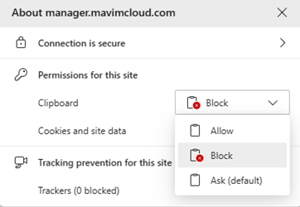
- Refresh the page.
Option 2: Update the settings menu
- Open Microsoft Edge.
- Open Settings.
- Go to Privacy, search, and services.
- Open Site permissions.
- Select Clipboard.
- Check whether the Mavim Manager URL is listed under Not allowed to see your clipboard.
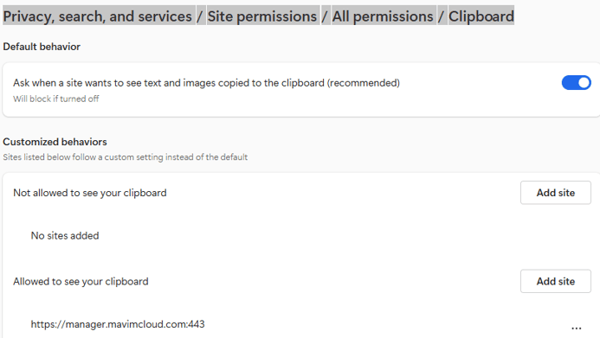
- Select the URL and set it to Allow.
- Refresh Mavim Manager or restart Edge.
Tip for new users
- The first time you open Mavim Manager, Edge shows a prompt asking for clipboard access.
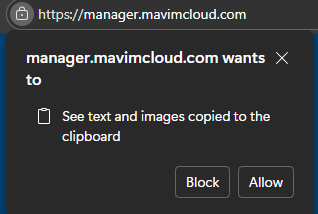
- Select Allow to enable copy and paste immediately.
5. Important notes, warnings, prerequisites
- Some organizations manage browser policies centrally. You may not be able to change the clipboard permission manually.
- If the setting is locked or greyed out, contact your IT administrator.
- This permission is browser‑specific. If you switch browsers, you must allow clipboard access again.
