
If you start the simulation module, it is automatically opened on the Flow Steps tab. If the simulation module is already running, you can go to the tab by clicking the Flow Steps tab.
In this tab, a number of default columns is available, namely Flow Sets, Weight and Percentage (for more information, see Weight and Percentage), as well as all of the attributes you have created and made available. For more information regarding attributes, see Attributes.
Example of the Flow Steps tab with two attributes, named "Cost" and "Time":
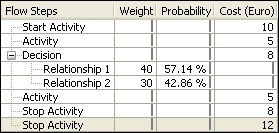
The first column, Flow Steps, contains the different steps of the process, and in the case of a decision, different options.
If you click a cell in a row of an activity, the corresponding shape is selected in Visio. You can therefore always see which step of the flow you are working on.
The other columns that are shown in the example above, i.e. "Cost" and "Time", are Attributes.
See Enter values for attributes for more information.
