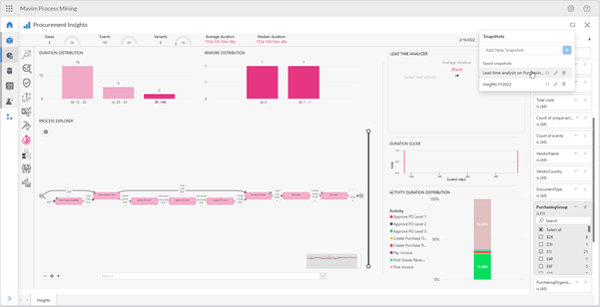
A snapshot is a ‘screenshot’ of an existing the report page. While performing analysis you are digging deeper into various root causes and applying multiple filters and selecting visuals to generate interesting findings. You can save the findings and create a snapshot of that particular report page with the filter conditions applied. This allows you to return to this insight at a later moment is time or share it with others. The snapshots are saved on each individual report and available for all users with access to view the report.
Before you start
Make sure you have:
- At least Analyzer license for Mavim Process Mining
- Access to a Mavim Process Mining report in a Process Hub
Steps to create and save a snapshot
Open Mavim Process Mining
- Sign in to Mavim Process Mining via https://processmining.mavimcloud.com
Navigate to the report
- Open the Process Hub
- Navigate to the report and open it
Analyse process insights
- Start analysing the report and investigate your process data to derive new process insights
Create a snapshot
- Navigate to the Snapshots icon and open the menu
- Insert a name for the snapshot
- Save the snapshot
- The saved snapshot will appear in the list
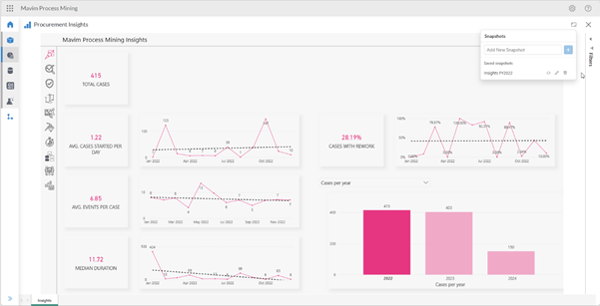
5. Update, rename or delete snapshot
- You can update an existing snapshot after changing some visual filters or filter conditions and selecting the update snapshot button to save the current page under the snapshot
- You can rename a snapshot
- You can delete a snapshot