
Fields are always part of a field set, therefore all fields must be assigned to a field set:
1. Select Field Administration from the Administrative Tools group on the Administration tab.
2. When the Field Administration screen appears, you will need to focus on the top and middle sections of the screen: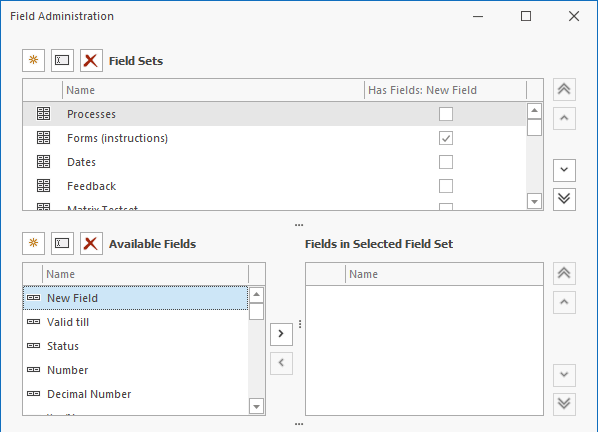
3. In the top section, select the Field Set you wish to configure fields for.
4. In the middle section, select the fields on the left you wish to add to the Field Set and click the right arrow button:  . The fields will then be added to the Field Set.
5. You can also change the order of the fields within the Field Set by using the vertical arrow buttons:
You can also remove fields from the Field Set from this screen.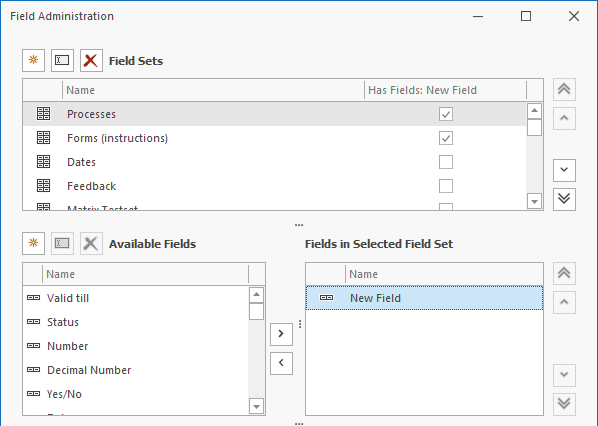
1. Select the Field Set you wish to configure in the top section of the screen.
2. Now in the middle section, select the field on the right that you wish to remove and click the left arrow button: 
Note: Fields that have been assigned to a Field Set will not be visible in the left section but will appear in the left section once more when removed from a Field Set.
Fields and field sets must be assigned to topics before they can be used. See: Assign Field Sets to Topics.
Note: If you have imported versions from another database (see Import Version), then you also have access to the associated fields and field set definitions (if any). You can recognise these definitions from the 
 icon to the left of the field (set) icon.
The management of field definitions and field sets takes place in the database from which the version was imported. Because of this you have no influence over any alterations that are made in the original database.
