
An exported version can be imported into the database, in order to be able to use the data in the version (see Version Management). It is possible to import versions from your own database as well as versions from other databases. To import a version:
1. Select Version from the Import group on the Modelling tab.
2. In the window that opens, select the correct file location and the transport database (*.mtdx) of the version you want to import.
3. Click Open to import the version into the database.
4. Optional: If the transport database has been secured with a password during export
(see Export Version) you will see the following notice: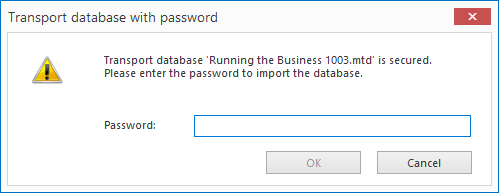
Enter the password and click OK. If you do not have the password, you cannot import the transport database. After three incorrectly entered passwords, the import is cancelled.
5. As a result, one of the following appears in the Topics screen:
· A purple file cabinet under Imported Versions, if the version comes from another database.
· A green file cabinet under Created Versions, if the version comes from the same database.
Note: For frequent version exchanges between databases, it is advisable to use a Distribution Centre (see Distribution Centre).
