
When creating a field the field properties must always be filled in:
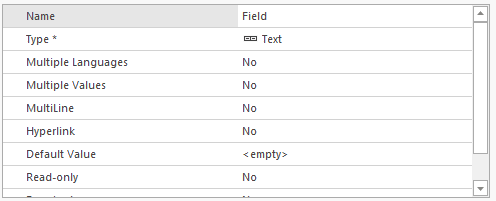
Note: Note that not all properties are available for each field type.
· For the Name property enter an appropriate name for the field.
· For the Type property use the drop-down selection to select the desired field type.
Because the choice of Type determines the type of data that can be input into the field, it is the most important field property. Extra information on field types can be found here: Set Field Type.
· For the Multiple Languages property you have a drop-down selection list with the values Yes or No. Selection Yes will allow you to enter a value for this field for each active language in the Mavim database. This is only available for fields of type Text. See Language.
· For the Multiple Values property you have a drop-down selection list with the values Yes or No. If you select Yes you can have more than one value for this field. (For example, multiple telephone numbers for a single contact).
· For MultiLine you will once again have a selection of Yes or No. If you select Yes it will be possible to input a value that spans multiple lines in the field.
· The Hyperlink property can be enabled to define a field to be "clickable" if a URL is entered. This works for both fields on a topic in the Mavim Manager and also in the Mavim Portal. Please note that when clicking a URL that is a field value in the Mavim Manager, you will need to double click to automatically open a browser with the URL.
· For Default Value you can enter a value that will automatically be filled in when the field is assigned to a topic.
· The Read-Only property is also a Yes/No property giving you control over whether or not the field value can be changed by users.
· The Required property, yet another Yes/No property, gives you the option to make a field mandatory. This means that a value must be entered for the field. The field will also show an asterisk (*) to indicate that it is required. When a version is created a check is done to see if all required fields have been filled in. If this is not the case then the user will need to rectify this first before continuing with the version creation.
Note: Note It is very important to note here that if you choose to make your field required and the field is of type Relationship List for instance, you must provide the Relationship List with a value. If you do not, the user will not be able to fill in a value. This is also true for other field types that are based on lists or selecting other topics.
· The Usage: Owner for Mavim Portal property can be used to assign the provided email address as input for the Owner for Mavim Portal functionality.
· The List Definition property is used to compile a list of text values from which a selection can be made. Click the cell with the text <New Value> which will only be visible if you have selected List for the field type.
· If the Relation List definition is double clicked you will be shown the Select a topic screen. The Relation list will consist of the sub topics of the selected topic. (Note: this means that you will not be able to select from the entire branch!)
· The Relationship Category property is used to select the desired relationship category when this property is double clicked. (This property is only available if the field type Relationship is selected).
· For the Characteristic property you will be able to select a characteristic. (This property is only available for field type Relationship and Relationship List).
Note: the name of the field (field type Relationship Category only) will be overwritten by the selected characteristic.
· The final property is Open Location. This setting allows you to determine the location in the tree that is opened when a value for the selected field is filled in.
Note: Creating a version which includes a topic that contains multiple fields with the property set to Owner for Mavim Portal is not supported.
Note: It is important to check these settings carefully and decide how to set each one. Should you want to change the Field Properties you run the risk of losing data (in the case that the changed definition cannot work with the saved values).
