
With the Find function, you can search for topics with certain words in their names, descriptions, codes or keys. It is also possible to replace that text using the Replace function (except in the key of a topic).
Note: There is also an advanced Find and Replace function available for the Description screen. See Find and Replace in Description.
Find:
To start this function:
- Select a random topic in the Topic
- Select Find on the Edit tab or in the context menu.
Note: You can open the Find function directly using the keyboard shortcut CTRL+F.
The Search window consists of three parts (Name and Location, Advanced and Search Results), which you can open or close by clicking the title.
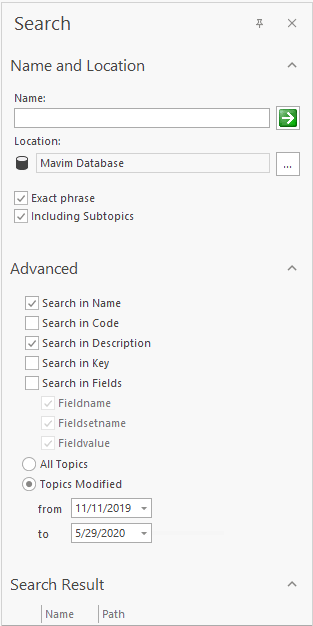
- Fill in the search criteria:
Name and Location:
- Name = the word(s) you want to find.
- Location = the part of the tree in which you want to search.
- Exact Phrase = the search results must match the text you enter exactly.
- Including Subtopics = also search in the subtopics of the topic you selected.
Advanced:
The search will be limited to the options you enable.
- Search in Name = search in the topic names.
- Search in Code = search in topic code.
- Search in Description = search in topic description.
- Search in Key = search in topic key.
- Search in Fields = search for fieldname, fieldsetname or fieldvalue.
- All Topics = search all topics.
- Topics Modified = search topics modified between the dates you specify. - Click the arrow next to the Name field to start the search.
- The search results will be shown below Search Results:
Search Results:
- Name = the names of the topics found.
- Path = the locations of the found topics in the tree.
Note: By double clicking a topic below Search Results, the topic will be selected in the Topics screen as well.
Replace:
To start this function:
- Select a random topic in the Topics screen.
- Select Replace on the Edit tab or in the context menu.
Note: You can directly open the Replace function with the keyboard shortcut CTRL+H.
The Replace window consists of two parts (Name and Location and Advanced), which you can open or close by clicking the title. - Fill in the search criteria:
The Replace window is the same as the Search window, except for the following:
Name and location:
Replace by = enter the text with which you want to replace the text you are searching.
Advanced:
It is not possible to change the topic key. - Click
 next to the Replace with field to start the replace operation.
- When a topic matches the search criteria, the following window will appear:
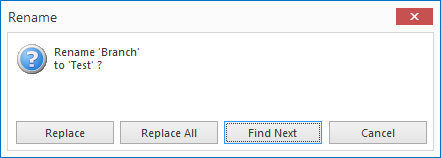
- You will be asked whether you want to rename the text, and can choose from the following options:
- Replace = Only the topic found is renamed, and the application will search for the next topic.
- Replace all = All topics that match the search criteria will be renamed.
- Find next = The found topic will not be renamed and the application will search for the next topic.
- Cancel = Find and replace will be cancelled.
