Prerequisites
- You must have administrator permissions in the Mavim Connect Center (MCC).
- You must know the email address associated with the partner's Mavim account.
- If your organization has multiple portals, ensure that the correct portal is selected before adding the partner.
Granting a Partner Access
Step 1: Open the Mavim Connect Center
Navigate to the Mavim Connect Center: https://connectcenter.mavimcloud.com
Step 2: Select the Correct Portal
If your organization manages multiple portals:
- Verify that the correct portal is selected.
- The currently selected portal is displayed at the top of the screen, next to your login name.
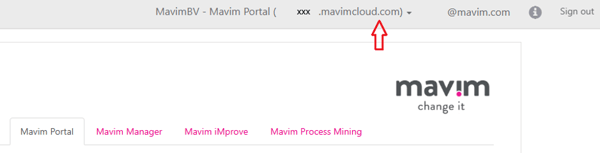
Step 3: Open the Publishing Users Tab
- Navigate to the tab Mavim Portal - Publishing users.
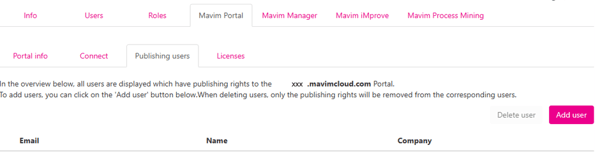
- Click Add user.
Step 4: Add the Partner
- Enter the partner's email address in the Partner e-mail address field.
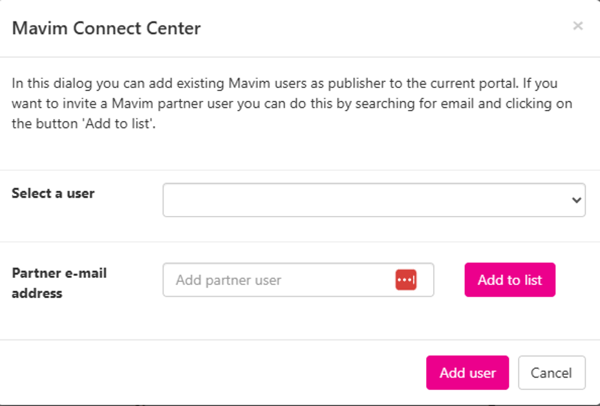
- Click Add to list.
- Click Add user to confirm.
The partner will now appear in the list of publishing users.
Publishing to Your Portal
After the partner has been added:
- The partner should restart Mavim Manager.
- Create a publication via: Modeling > Publication > Mavim Portal
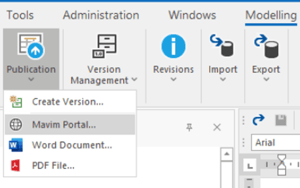
- In the Create New Website screen, the partner can choose the appropriate Portal via the drop-down menu behind Mavim Portal
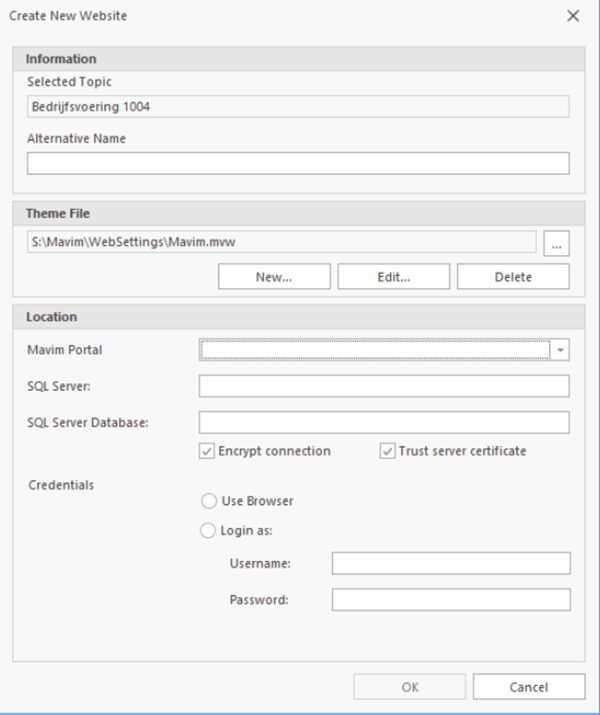
- Once selected, the partner can publish content directly to your portal.