
Prerequisites
-
You must have an MCC account with the Mavim Process Mining role assigned.
-
Mavim Delivery must have delivered the licenses to your MCC account.
-
Only users with the MPM Admin role in Mavim Process Mining will have administrator permissions and access to Admin Settings.
Steps
Step 1 – Sign in to Mavim Connect Center
-
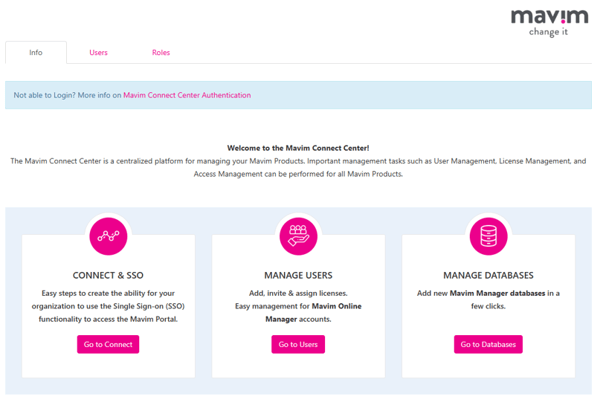
Go to https://connectcenter.mavimcloud.com/.
-
Sign in using your MCC credentials.
Mavim Connect Center (MCC) is the central hub for license administration for all Mavim products.
Step 2 – Assign the Mavim Process Mining role to your MCC account
-
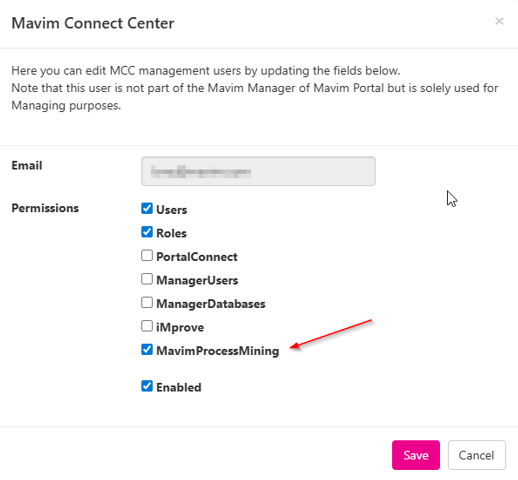
In MCC, navigate to the Roles tab.
-
Assign the Mavim Process Mining role to your account.
-
This role gives you access to view and assign Process Mining licenses.
-
Step 3 – Open the Mavim Process Mining license overview
-
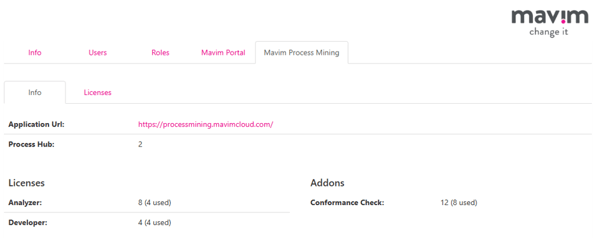
After the role is assigned, the Mavim Process Mining tab becomes visible in MCC.
-
Use this tab to view and manage all Process Mining licenses.
-
The Info tab shows an overview of purchased licenses.
-
-
-
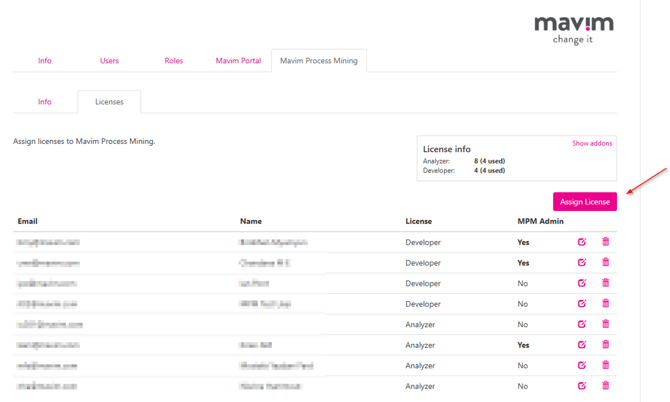
The Licenses tab lists users with assigned licenses and allows you to add new ones.
-
Step 4 – Assign a license to a user
-
Go to the Licenses tab.
-
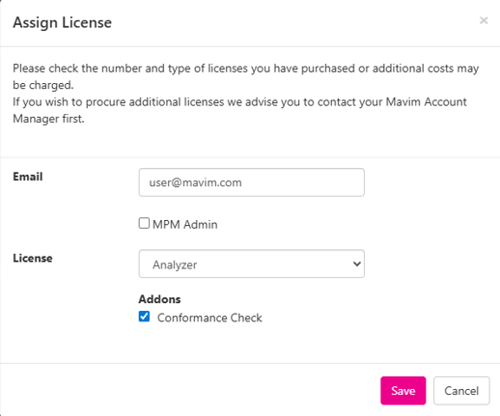
Click Assign License to invite a new user.
Step 5 – Fill in user details
-
Enter the user’s email address.
-
Select the appropriate Mavim Process Mining license type and any applicable add-ons.
-
If the user should have administrative permissions, select MPM Admin.
-
MPM Admin users gain access to Admin Settings in Mavim Process Mining.
-
Step 6 – Send the invitation
-
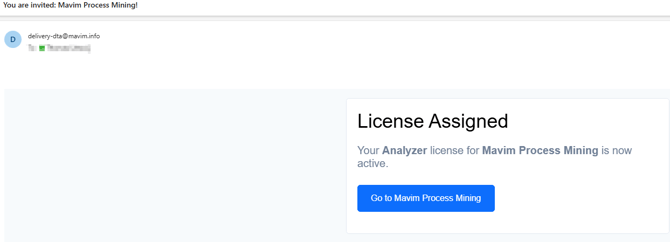
After saving the license configuration, MCC automatically sends a confirmation email to the user.
-
The user must click the activation button in the email to accept and validate the license.
Step 7 – User access confirmation
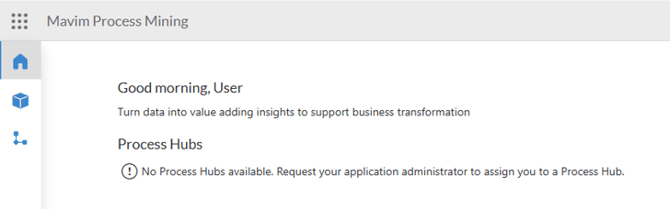
Once the license is validated, the user can sign in to Mavim Process Mining via
https://processmining.mavimcloud.com/.
By default, the Mavim Process Mining home page is displayed.
The user is now successfully onboarded.
Next steps
After assigning licenses, configure Role-Based Access Control (RBAC) for users within Mavim Process Mining to define permissions and access levels.
Video tutorial
Watch the video for a step-by-step walkthrough of license assignment:
