Before you start
Make sure you have:
- The Developer license assigned to your user profile from Mavim Connect Center
- A role with Create report and Manage report permissions
Steps for creating a report
1. Open Mavim Process Mining
- Sign in to Mavim Process Mining via https://processmining.mavimcloud.com
2. Navigate to a Process Hub
- Open a Process Hub where you want to create a new report.
- Navigate to the Process Analytics page from the side nav.
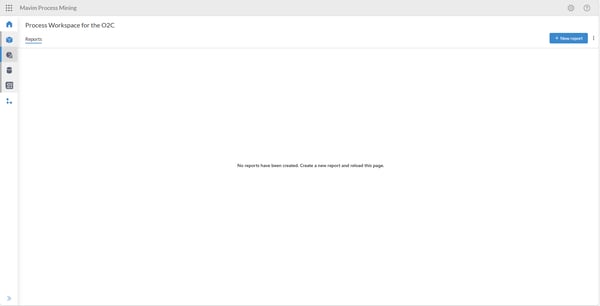
3. Create new report
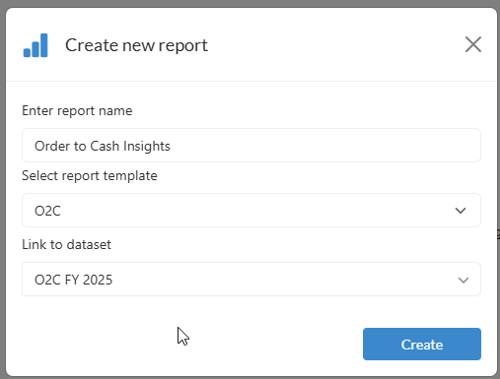
- Select New report
- Give your report an appropriate name.
- Select the dataset that the report needs to link to.
- Optional: Select a report template
Note: Dataset and Reports have a versioning mechanism, so there can be compatibility issues when creating or linking dataset to a report when the version number does not match.
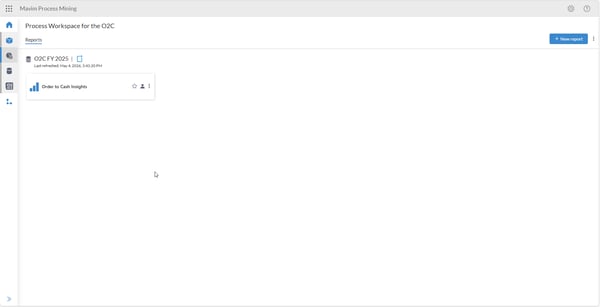
4. Successfully created a report
- In the Report overview the created report will appear.
- When clicking the report tile, the report can be opened when you have Open report
5. Manage report
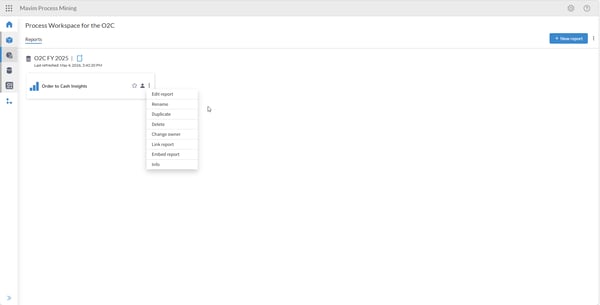
- When you have the permission Manage report, you can perform multiple tasks such as renaming, linking, duplicating, changing owner or deleting the report.