Before you start
Make sure you have the following:
- A Developer license for Mavim Process Mining, assigned through Mavim Connect Center
- Access to the report in a Process Hub
- Portal Administrator permissions in the Mavim Portal where you want to embed the report
Embed a Process Mining report
Sign in to Mavim Process Mining
- Go to https://processmining.mavimcloud.com.
- Sign in with your Mavim account.
Open the report
- Open the Process Hub that contains the report.
- Navigate to the report you want to embed.
Generate an embed link
- Select the three-dot menu on the report card.
- Select Embed report.
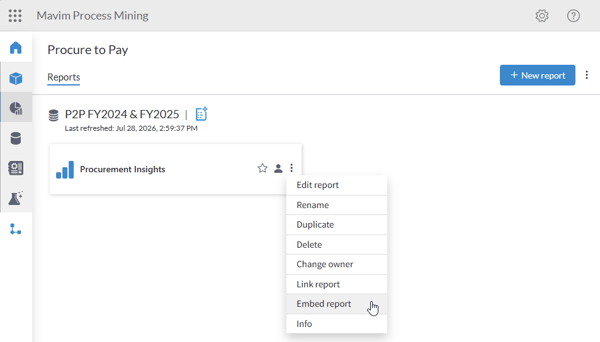
- Copy the generated embed link.
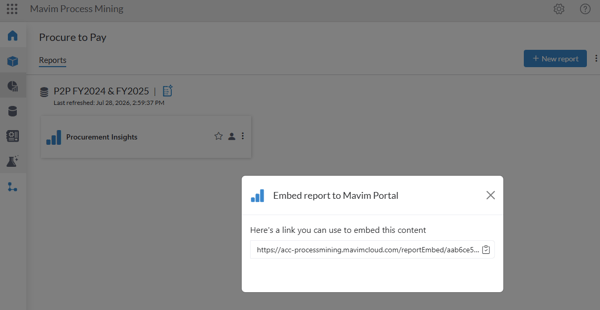
Open the Mavim Portal administration settings
- Open Mavim Portal.
- Select Dashboard, then select the lock icon to open the Portal Admin Settings page.
- Open the Tabs tab.
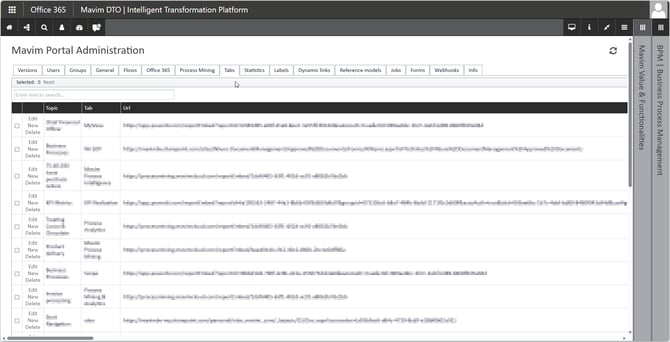
Create a new tab
- Select New.
- Select the Topic where you want to add the tab.
- Enter a Tab name.
- Paste the Process Mining embed link into the URL field.
- Set Sandbox to None.
- Scroll to the top of the page and select Update to save the tab.
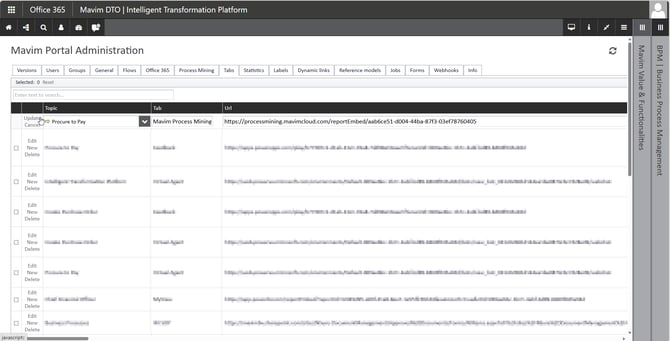
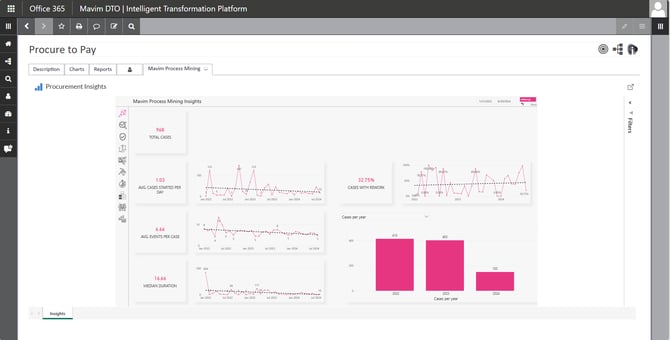
Check the newly created tab and start analysing process insights
- Navigate to the topic where you added the tab.
- Open the new tab to view the embedded Process Mining report and start analyzing your process insights.
Note: Users are prompted to sign in to Mavim Process Mining the first time they open the embedded report.
Important: Every user who accesses the embedded report must have a valid Mavim Process Mining license and permission to access the report.
For a step by step explanation you can also watch the video below on how to embed a report in the Mavim Portal: