
What is Mavim Connect Center (MCC)?
The MCC is an administration hub for managing the Mavim Online environment. It allows IT admins or application managers to perform tasks such as:
- Creating a federative link between your organization and the Mavim Portal (SSO)
- Inviting users to Mavim Manager and assigning licenses.
-
Providing access to databases and creating new ones.
-
Administer & Configure Mavim iMprove
-
Configure ConversAI
-
Administer & Configure Mavim Process Mining
Who has access to MCC?
-
Customer’s Technical Contact: This is the person, the Mavim platform is delivered to.
They can grant access to other stakeholders by adding them in MCC. -
First Admin account: Delivered upon setup, formatted as
azuread@customername.onmicrosoft.com. -
Note: This is a temporary staging account and should only be used when necessary.
How to log in to MCC
- Log in with your organization’s work account.
- If login fails due to organizational policies:
- Use the staging account:
azuread@customername.onmicrosoft.com.
- Use the staging account:
- For permanent access:
-
Add the Mavim Enterprise app to your Entra ID.
-
Important: Avoid using the staging account long-term. Identities should be managed within your organization’s tenant for security and governance.
What is Mavim iMprove?
Mavim iMprove is a cloud-native application for editing and improving data collaboratively. It shares the database with Mavim Manager and requires:
-
Microsoft 365 license (currently required for viewing and editing descriptions)
-
Microsoft Entra as the identity provider
-
Mavim Manager Database and application
Access Mavim iMprove at https://improve.mavimcloud.com
Prerequisites for Mavim iMprove
-
The Mavim Enterprise app must be added to your Entra ID as a service principal to facilitate authentication
- No staging account is available for Mavim iMprove.
How to add Mavim iMprove to Azure Active Directory
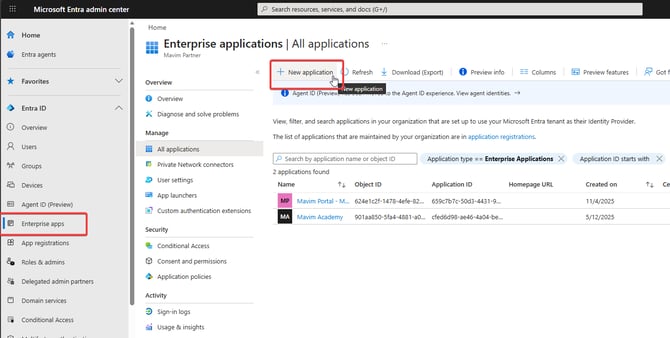
- Navigate to https://entra.microsoft.com and log in as an administrator.
- Select Enterprise applications.
- Click New application.
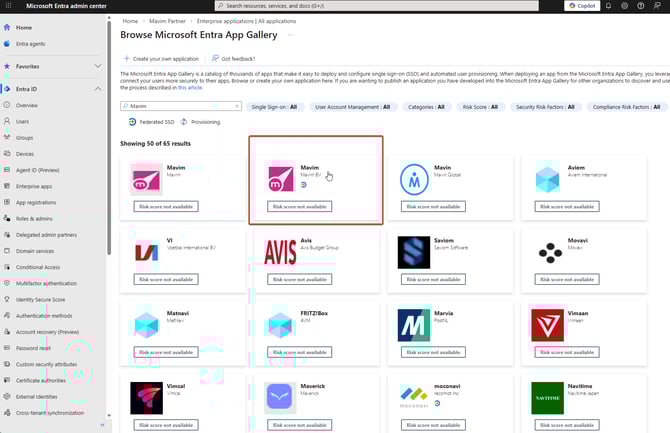
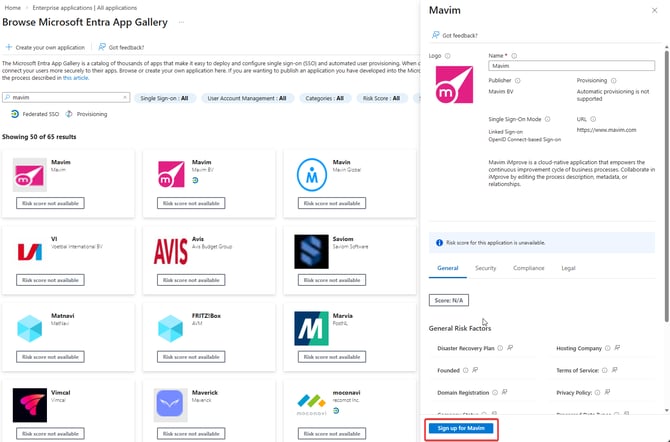
- Search for Mavim and select Mavim iMprove.
- Click Sign up for Mavim iMprove.
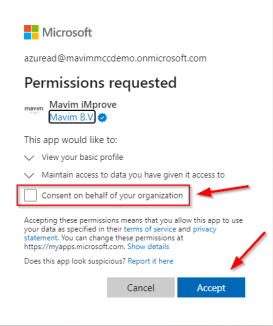
- Enable the checkbox to provide access for your organization and click Accept.
- Verify access by visiting:
For additional restrictions, configure access in Entra ID
References
Important notes
-
Consenting the Mavim app requires administrator privileges in Entra ID.
- Mavim discourages long-term use of staging accounts.
-
Only organizations using Entra ID are supported.
