Before you start
Make sure you have:
- The Developer license assigned to your user profile (from MCC).
- A role with Manage report permission
Steps for managing reports
1. Open Mavim Process Mining
- Sign in to Mavim Process Mining via https://processmining.mavimcloud.com
2. Navigate to a Process Hub
- Open a Process Hub.
- Navigate to Process Analytics from the side nav.
- Make sure there is an existing report or create a new report
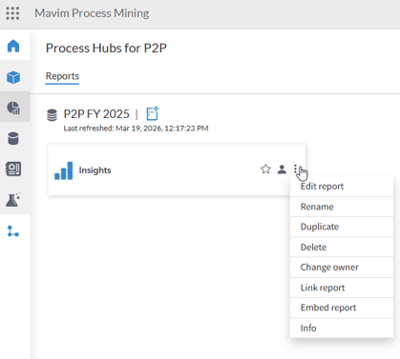
3. Open the options menu on a report
- Navigate to the 3-dots menu on a report
- You need to have the correct license and permissions to have access to the functionalities in the dropdown.
4. Edit report
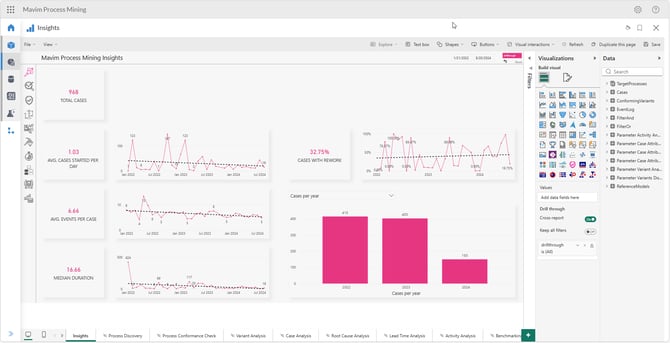
- When clicking edit report the report is opened in Editor mode (permissions apply) where you can adjust the Power BI report and change visuals, apply filtering, create new report pages and other tasks in relation to adjusting the report.
5. Rename report
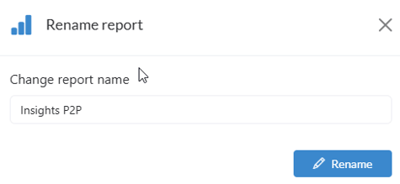
- When clicking Rename the report can be renamed.
6. Duplicate report
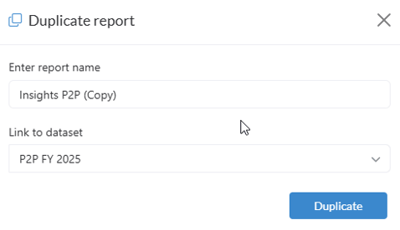
- When clicking Duplicate the report can be copied and cloned. You need to link it directly to a dataset within the same process hub.
7. Delete report
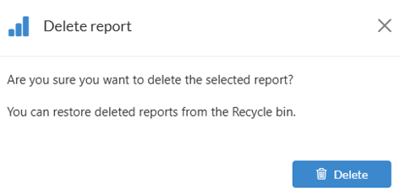
- When clicking Delete the report can be ‘soft-deleted’. The report is moved to the recycle bin. In the recycle bin the report can be permanently deleted.
8. Change owner
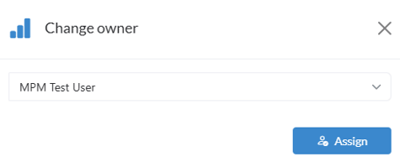
- When clicking Change owner the report owner can be changed.
9. Link report
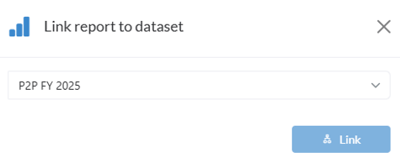
- When clicking Link report the report can be linked to another dataset within the same process hub, in case you want to re-use the report with another dataset.
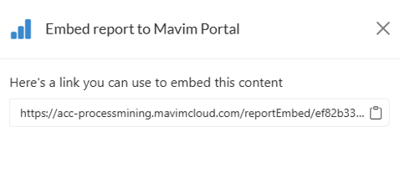
10. Embed report
- When clicking Embed report a unique report URL link can be copied. This URL can be used to create a tab in Mavim Portal or Mavim iMprove to embed the process mining report.
11. Info of the report
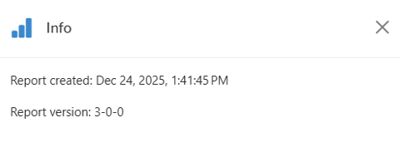
- When clicking Info some extra information of the report can be viewed.