
Upload data in Mavim Process Mining
In Mavim Process Mining you can upload event logs to perform process mining analysis. In the Data section of a Process Hub you have an overview of the available datasets.
Before you start
Make sure you have:
- The Developer license assigned in Mavim Connect Center
- A role with Manage Dataset permissions for a Process Hub
Steps to upload data
1 Navigate to Data in a Process Hub
- Open a Process Hub
- Navigate to the Data page from the side nav.
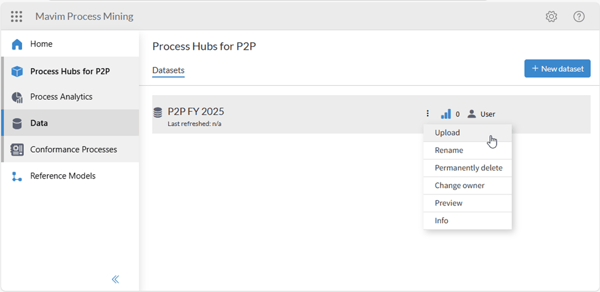
2 Select Upload
- Open the context menu on the dataset
- Select Upload
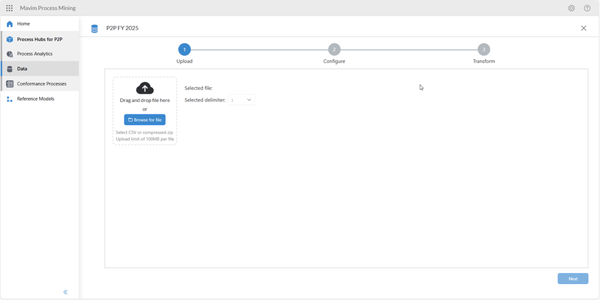
3 Select the event log file
- Select the file you want to upload
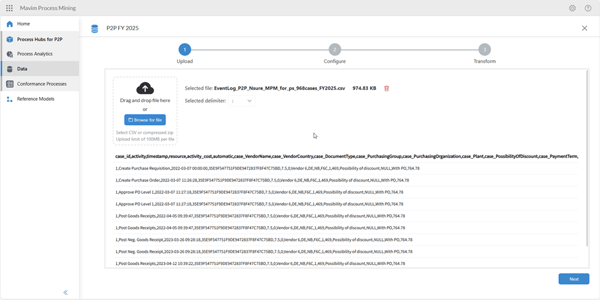
- A preview of the selected file is shown
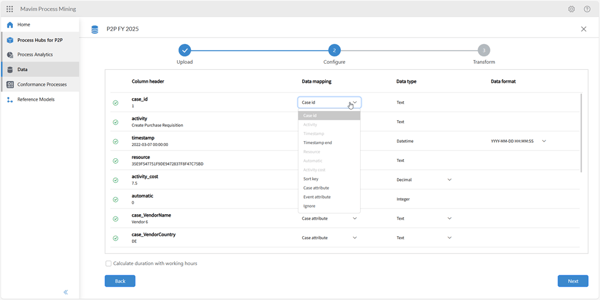
3 Configure the mandatory column
- You need to configure case id, activity and timestamp
- You can configure additional attributes, like resource, timestamp end, automatic, activity cost and sort key.
- You can configure additional attributes like case attribute and event attribute.
A case attribute is an additional data attribute that gives context to a case object, like vendor, product category, delivery date or payment term. Please note that a case attribute can only contain 1 unique value per case id.
An event attribute is an additional data attribute that gives context to an event object, like location, team, department.
- You can also ignore a column.
- Click Next to start the upload and transformation.
4 Upload and transform your data
- Upload and transformation progress is shown.
- A status is shown when the event log transformation is completed successfully.
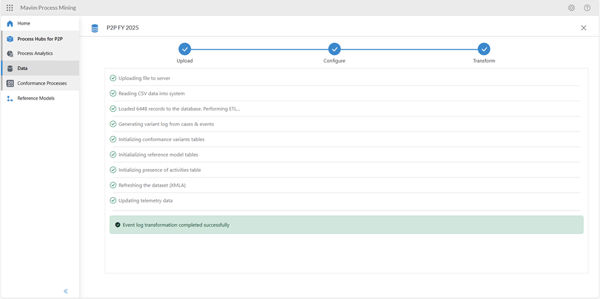
5 You have successfully uploaded data
- In the Dataset overview the Last refresh data will show the last date when a successful event log was uploaded and transformed.
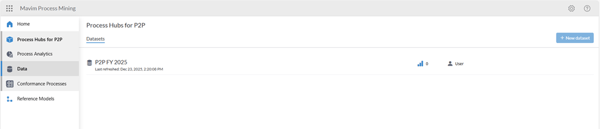
- Next step is to create or open a report to analyze your results.
